

What you'll learn
- Why an operating system is needed and what it does for users and applications.
- How memory management uses paging, segmentation and virtual memory.
- How interrupts, scheduling, BIOS, device drivers and virtual machines fit into a computer system.
- How to compare common operating system types and CPU scheduling algorithms.
Systems software: the big idea
Systems software
Systems software is software that manages the computer system itself and provides a platform for application software to run on. The most important example is the operating system.
An application such as a web browser should not have to know exactly how to control every model of keyboard, disk drive, printer and network card. Instead, it asks the operating system to do those jobs.
Operating system
An operating system (OS) is systems software that manages hardware resources, provides services to applications, and gives users a way to interact with the computer.
The OS acts as an interface, meaning a boundary layer, between the user, application software and hardware.
Typical OS functions include:
- User interface: a graphical user interface (GUI) or command-line interface (CLI).
- Process management: starting, stopping and switching between running programs.
- Memory management: allocating RAM and keeping processes separate.
- File management: organising files and directories on storage.
- Peripheral management: communicating with devices such as printers and keyboards.
- Security and access control: usernames, passwords, permissions and protection.
- Utility services: backups, compression, updates and system monitoring.
Why an OS is needed
The OS makes the hardware usable: it hides low-level hardware details, shares limited resources fairly, and protects programs from interfering with each other.
Memory management
Main memory and process
Main memory, usually RAM, stores programs and data currently in use. A process is a program that is currently running, along with its data and execution state.
The OS must decide where each process is placed in memory. It also has to stop one process from reading or overwriting another process’s memory.
Paging
Paging
Paging is a memory management technique where a process’s logical address space is split into fixed-size blocks called pages, and physical memory is split into same-size blocks called frames.
A logical address is the address used by a program. A physical address is the real location in RAM.
A page table maps each page number to a frame number. Pages do not need to be stored next to each other in RAM, which makes allocation easier.
Segmentation
Segmentation
Segmentation divides a process into variable-size logical sections called segments, such as code, data, stack and heap.
Segmentation reflects the structure of a program. Each segment has a base address, where it starts, and a limit, its size. Segmentation can make protection easier, for example making the code segment read-only.
Virtual memory
Virtual memory
Virtual memory uses secondary storage, such as an SSD or hard disk, as if it were extra main memory.
If a needed page is not currently in RAM, a page fault occurs. The OS loads the missing page from secondary storage into RAM, possibly moving another page out to make space.
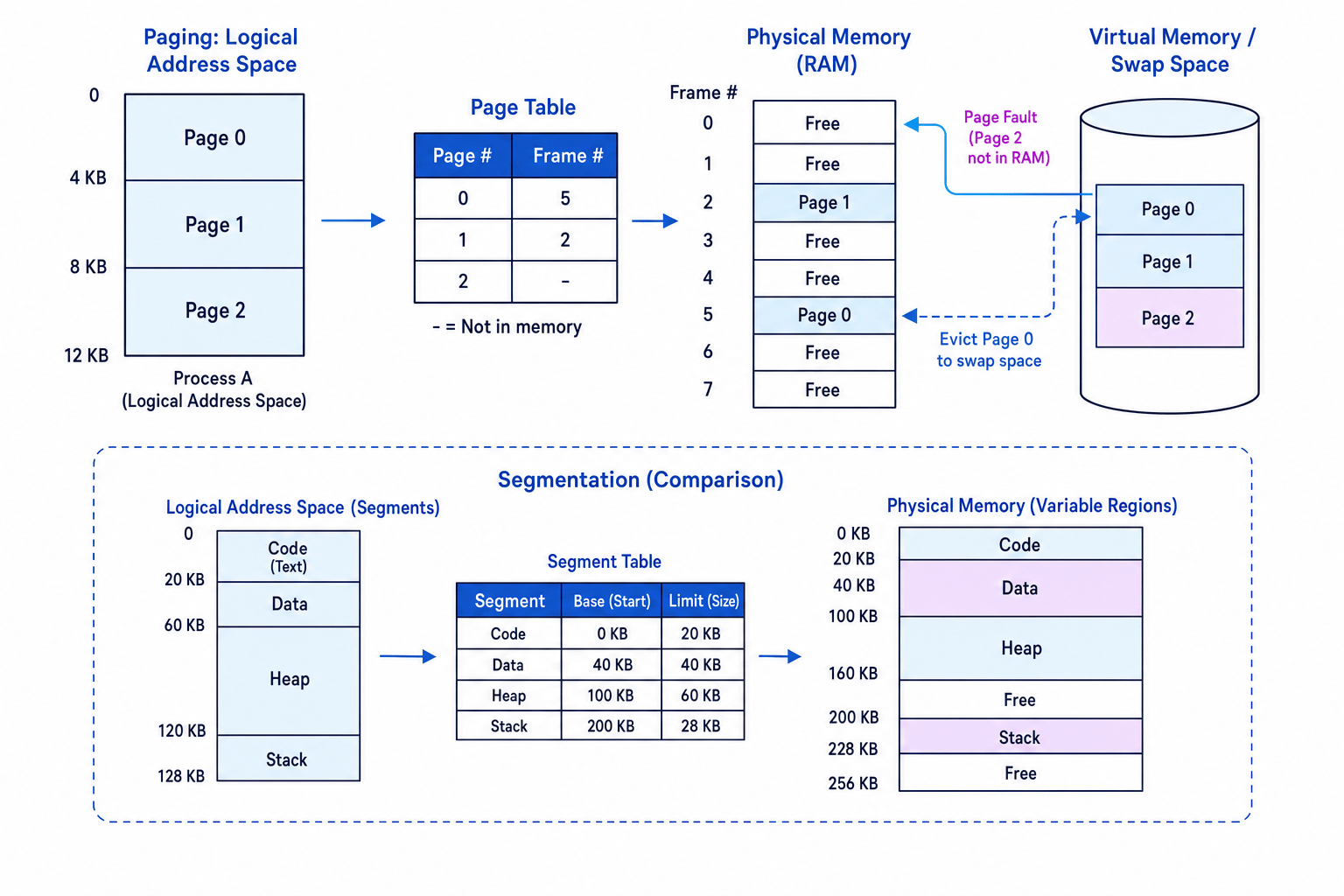
Translating a paged address
A system uses 4 KB pages. A logical address is 10 KB into a process. Page 2 is stored in frame 7.
- Split the logical address into a page number and offset: page=10 DIV 4=2page = 10 \text{ DIV } 4 = 2page=10 DIV 4=2, and offset=10 MOD 4=2 KBoffset = 10 \text{ MOD } 4 = 2\text{ KB}offset=10 MOD 4=2 KB.
- Use the page table: page 2 maps to frame 7, so the physical address is somewhere in frame 7.
- Find the address within physical memory: frame 7 starts at 7×4 KB=28 KB7 \times 4\text{ KB} = 28\text{ KB}7×4 KB=28 KB, so the final physical address is 28 KB+2 KB=30 KB28\text{ KB} + 2\text{ KB} = 30\text{ KB}28 KB+2 KB=30 KB.
Paging vs segmentation
Do not say that pages are different sizes. Pages and frames are fixed-size; segments are variable-size and based on logical parts of a program.
Virtual memory is not free RAM
Virtual memory lets more programs appear to run than RAM alone would allow, but secondary storage is much slower than RAM. Too many page faults can cause thrashing, where the computer spends more time swapping pages than doing useful work.
Interrupts and Interrupt Service Routines
Interrupt
An interrupt is a signal that causes the processor to temporarily stop its current task and deal with an event that needs attention.
Interrupts can be caused by hardware, such as keyboard input, a timer tick, a disk operation completing, or an error. They can also be caused by software.
Interrupt Service Routine
An Interrupt Service Routine (ISR) is a special piece of OS code that runs to handle a specific interrupt.
The CPU normally works through the Fetch-Decode-Execute cycle, where it fetches an instruction, decodes it, and executes it. Interrupts are usually checked at the end of this cycle. If an interrupt is pending and enabled, the CPU saves its current state, runs the ISR, then restores the saved state and continues.
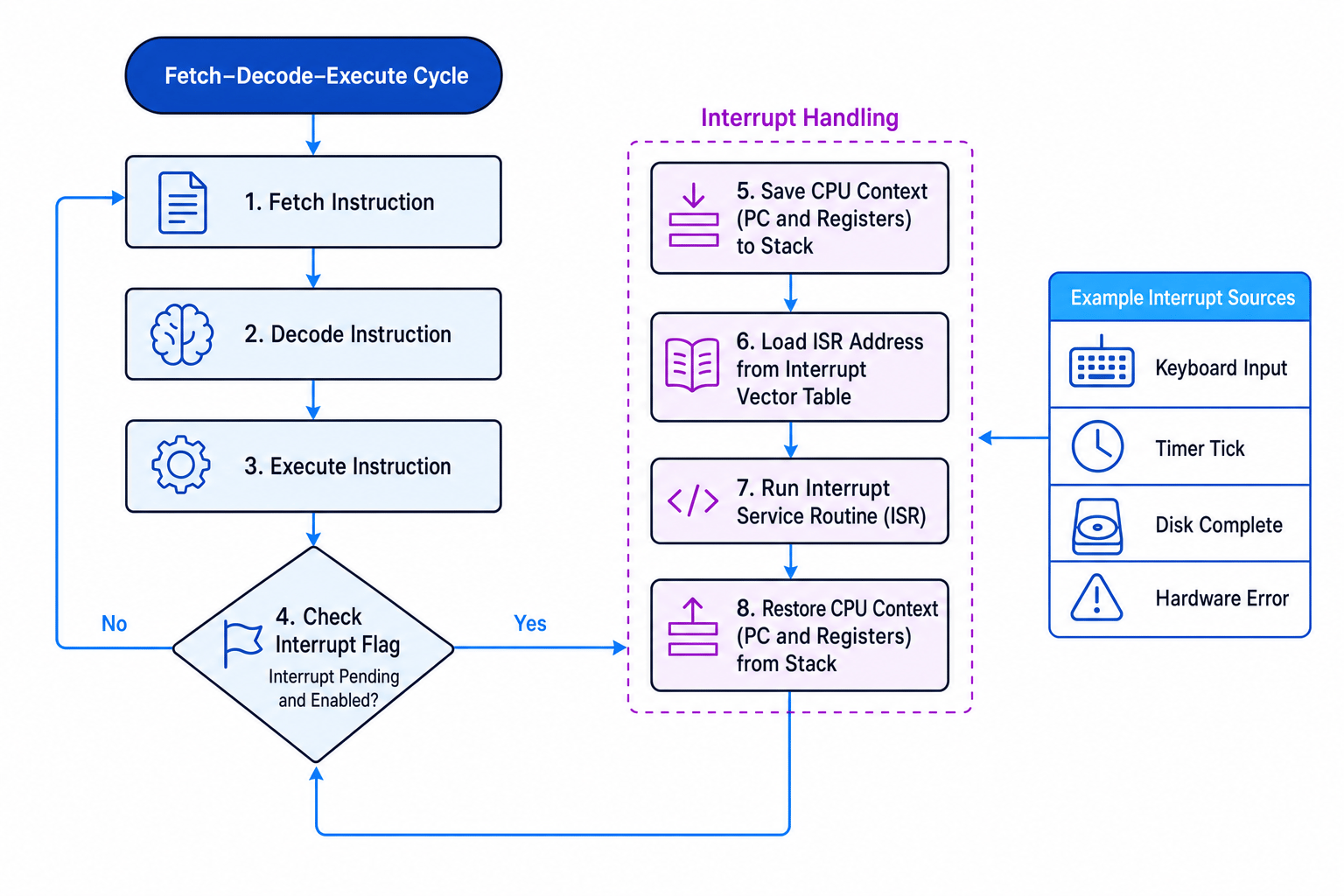
Handling a disk-complete interrupt
- A program asks the OS to read data from disk, then the CPU continues running other instructions while the disk works.
- When the disk has finished, the disk controller sends an interrupt signal to the CPU.
- The CPU finishes its current instruction, saves the program counter and registers, then jumps to the correct ISR.
- The ISR records that the disk data is ready, may unblock the waiting process, then restores the CPU state so normal execution can continue.
Scheduling
Scheduling
Scheduling is the OS process of deciding which ready process should use the CPU next.
A ready queue contains processes that are waiting for CPU time. A scheduling algorithm may be non-pre-emptive, meaning a process keeps the CPU until it blocks or finishes, or pre-emptive, meaning the OS can interrupt it and give the CPU to another process.
Common scheduling algorithms
- First come first served (FCFS): processes run in order of arrival. Simple, but a long job can make many short jobs wait.
- Round robin: each process gets a fixed time quantum, then goes to the back of the queue if unfinished. Good for interactive systems.
- Shortest job first (SJF): chooses the waiting process with the shortest expected CPU burst. Usually non-pre-emptive.
- Shortest remaining time (SRT): pre-emptive version of SJF. If a new process arrives with less remaining time, it can take over the CPU.
- Multi-level feedback queues (MLFQ): several queues with different priorities. Processes can move between queues depending on behaviour.
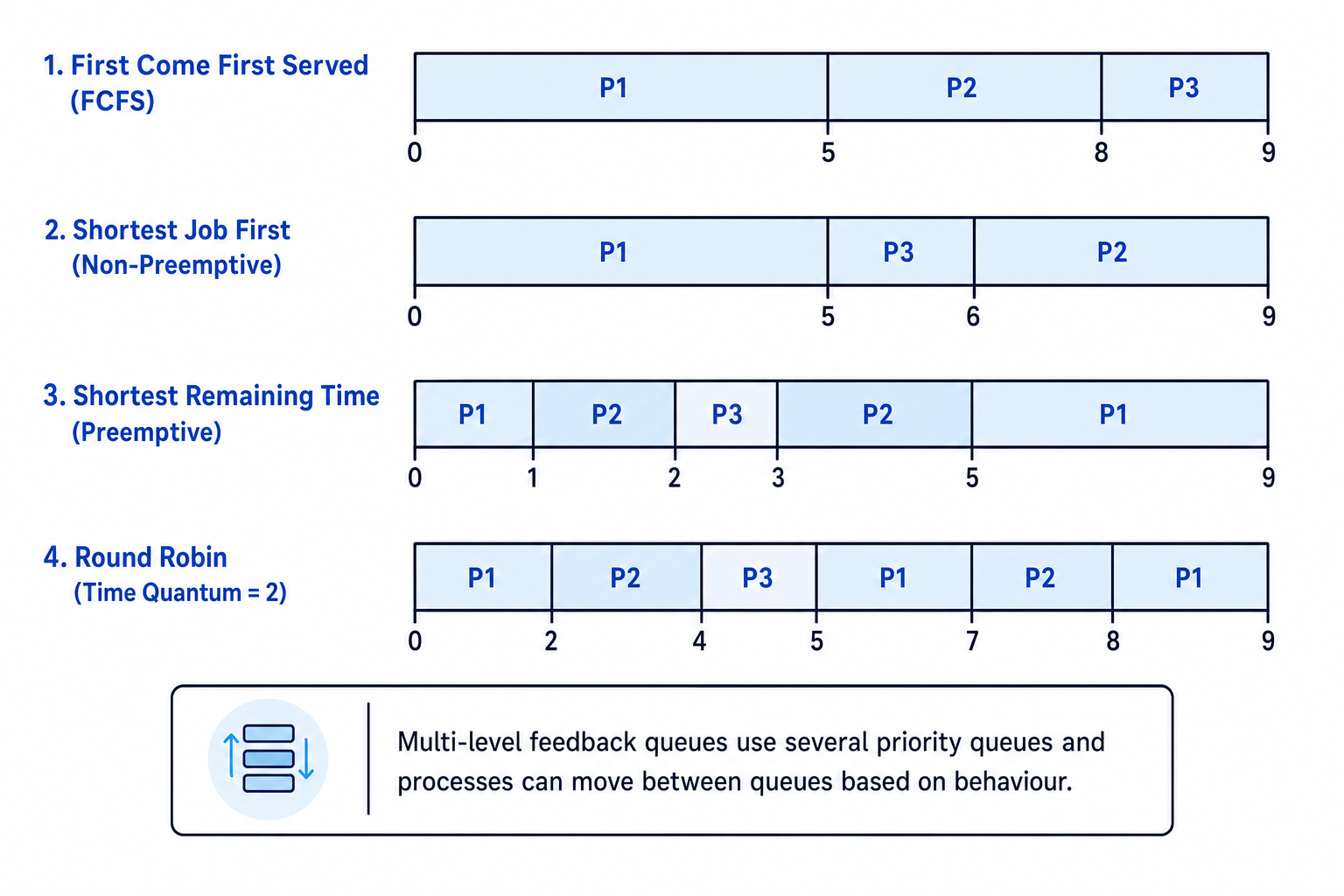
Applying shortest remaining time
Processes are: P1 arrives at time 0 with burst 5, P2 arrives at time 1 with burst 3, and P3 arrives at time 2 with burst 1.
- At time 0, only P1 has arrived, so P1 runs. At time 1, P1 has 4 units left, while P2 needs 3, so P2 pre-empts P1.
- At time 2, P2 has 2 units left, while P3 needs 1, so P3 pre-empts P2 and runs until time 3.
- At time 3, compare remaining times: P2 has 2 left and P1 has 4 left, so P2 runs until time 5. P1 then runs from time 5 to time 9.
- Completion times are P1 = 9, P2 = 5, P3 = 3. Waiting times are P1: 9−0−5=49 - 0 - 5 = 49−0−5=4, P2: 5−1−3=15 - 1 - 3 = 15−1−3=1, P3: 3−2−1=03 - 2 - 1 = 03−2−1=0.
- The average waiting time is 4+1+03≈1.67\frac{4 + 1 + 0}{3} \approx 1.6734+1+0≈1.67 time units.
Scheduling sanity check
For SJF and SRT, only choose from processes that have actually arrived. You cannot schedule a process before its arrival time.
Types of operating system
Distributed operating system
A distributed operating system manages several networked computers and makes them appear to users like one system. Work and resources can be shared across machines.
Embedded operating system
An embedded operating system is built into a dedicated device, such as a washing machine, router or car braking system. It is usually small, efficient and designed for one specific purpose.
Multi-tasking operating system
A multi-tasking operating system allows several processes to appear to run at the same time. On a single-core CPU this is done by rapid switching; on multi-core CPUs, tasks may genuinely run in parallel.
Multi-user operating system
A multi-user operating system allows multiple users to use the system at the same time. It must manage accounts, permissions, memory protection and fair CPU sharing.
Real Time operating system
A Real Time operating system (RTOS) is designed to respond to events within strict time limits. In a hard real-time system, missing a deadline may be dangerous, such as in an airbag controller. In a soft real-time system, missing a deadline reduces quality, such as dropped frames in video playback.
BIOS
BIOS
The Basic Input/Output System (BIOS) is firmware stored on the motherboard that starts the computer and helps load the operating system.
When the computer is switched on, the BIOS performs a Power-On Self-Test (POST), initialises hardware, finds a bootable device, and starts the bootloader that loads the OS.
Device drivers
Device driver
A device driver is systems software that allows the operating system to communicate with a specific hardware device.
The OS might issue a general command such as “print this page”. The printer driver translates that into commands the particular printer model understands.
Driver is not the device
A device driver is software. The keyboard, printer or graphics card is hardware; the driver is the software layer that lets the OS control it.
Virtual machines
Virtual machine
A virtual machine (VM) is software that takes on the function of a machine.
There are two important uses for this topic:
- A VM can execute intermediate code, such as bytecode, making programs more portable across different hardware and operating systems.
- A VM can run one operating system inside another. The real computer is the host, and the OS running inside the VM is the guest.
Virtual machines are useful for testing, sandboxing, running older software, server consolidation and security isolation. The trade-off is that they add overhead because software is pretending to be, or managing access to, a machine.
VMs are about abstraction
A virtual machine creates a software-based layer that behaves like a machine, either for running intermediate code or for running a whole guest operating system.
In the exam
- When asked for OS functions, name the function and explain what it achieves, for example “memory management allocates RAM and protects processes from each other.”
- For scheduling, state whether the algorithm is pre-emptive and use arrival times carefully before drawing a timeline.
- Keep BIOS, device drivers and the OS separate: BIOS starts the machine, the OS manages the running system, and drivers let the OS control specific devices.
Check yourself
- What is the difference between paging and segmentation?
- Where are interrupts checked in relation to the Fetch-Decode-Execute cycle?
- Why might round robin be better than first come first served for an interactive computer?