
What you'll learn
- How input, output and storage devices fit into a computer system.
- How to choose suitable devices for different real-world problems.
- The key uses of magnetic, flash and optical storage.
- The difference between RAM, ROM and virtual storage.
The big picture
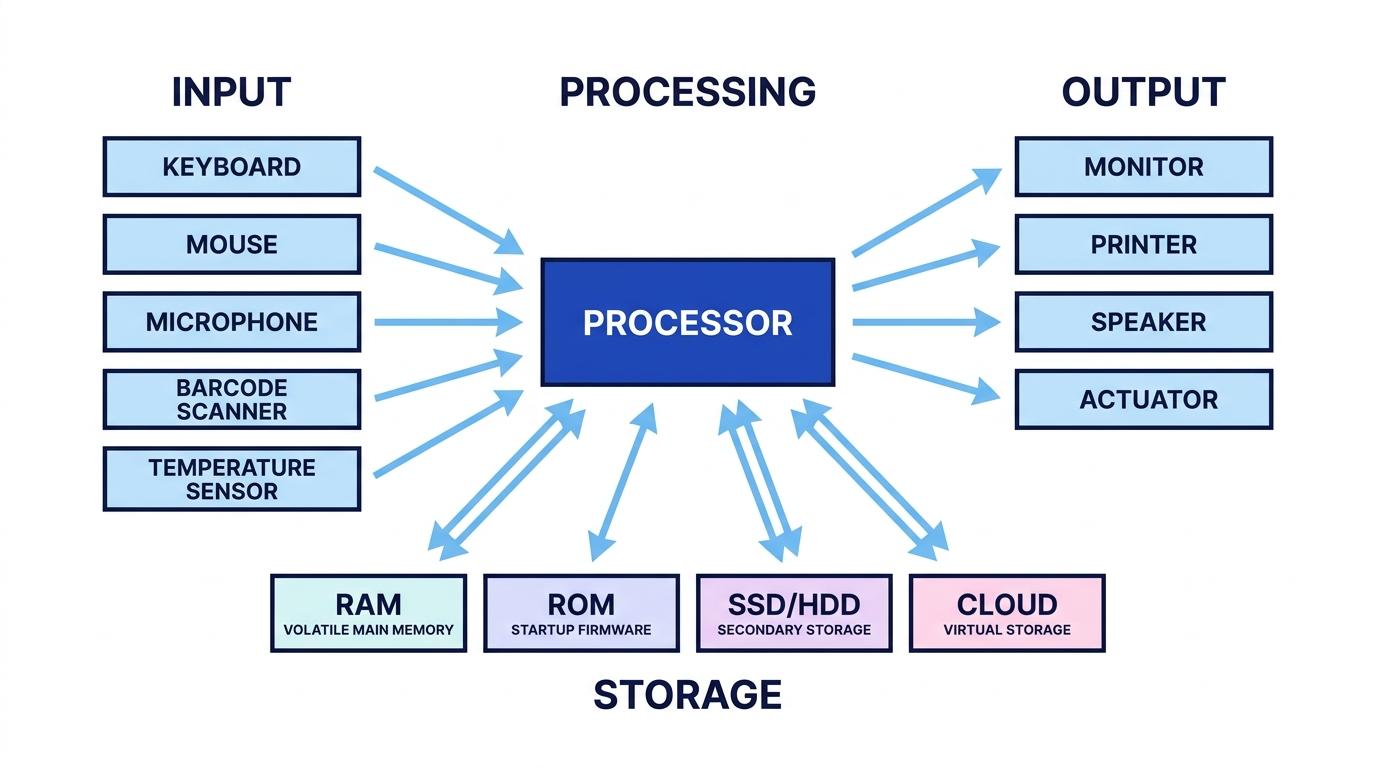
A computer system needs a way to receive data, process it, present results, and save data for later.
Input, output and storage devices
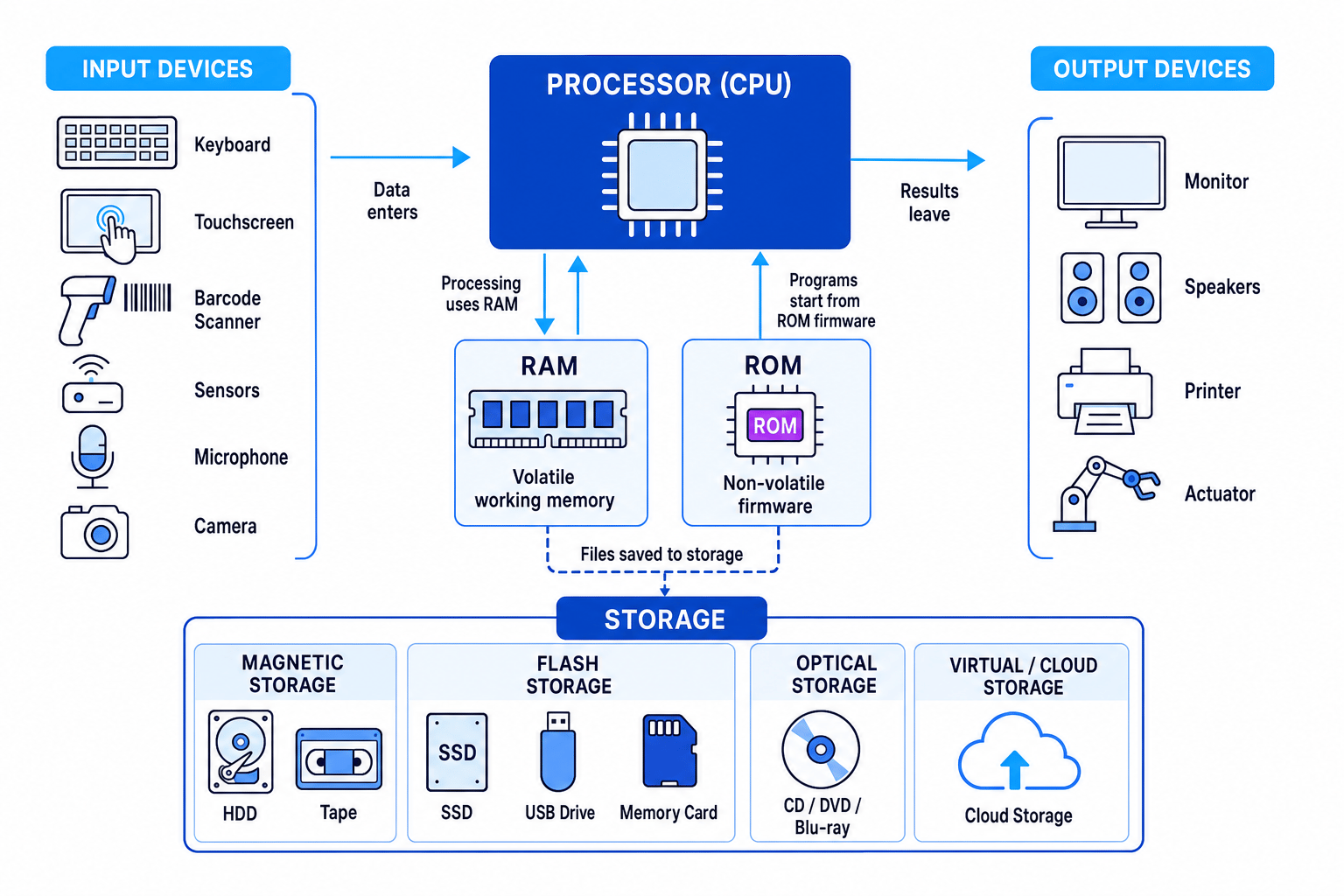
An input device sends data into a computer system. An output device presents data from a computer system. A storage device saves data, programs or instructions so they can be used again later.
Input devices
An input device is used when data needs to be captured. The best device depends on the type of data and the situation.
Common examples include:
| Input device | Suitable use |
|---|---|
| Keyboard | Entering text, commands, usernames or search terms |
| Mouse / touchpad | Selecting items on a graphical user interface |
| Touchscreen | Public kiosks, phones and tablets where input and output are combined |
| Barcode / QR scanner | Fast, accurate product or ticket identification |
| RFID / NFC reader | Contactless cards, asset tracking, access control |
| Microphone | Voice input, dictation, sound recording |
| Camera / scanner | Capturing images, documents or video |
| Sensors | Measuring physical conditions, such as temperature, light, pressure or motion |
A sensor is an input device that detects a physical property. For example, a temperature sensor can send readings to a heating control system.
Output devices
An output device is used when the system needs to communicate results or cause an action.
Common examples include:
| Output device | Suitable use |
|---|---|
| Monitor / display | Showing visual information that may change often |
| Printer | Producing hard-copy documents, labels or receipts |
| Speaker / headphones | Audio feedback, alerts, music or spoken instructions |
| Actuator | Producing physical movement, such as opening a barrier or moving a robot arm |
Actuator
An actuator is an output device that converts a computer signal into physical action, such as movement, switching or rotation.
Storage devices
A storage device keeps data or programs so they are available later. Storage may be internal, such as an SSD inside a laptop, or external, such as a USB flash drive.
Match the device to the problem
Device choice is about fitness for purpose: consider speed, accuracy, capacity, portability, durability, cost, user needs, security and the environment where the system will be used.
Choosing devices for a self-service library kiosk
-
Identify the data that must enter the system. The kiosk needs to identify a book and a library user. A barcode scanner or RFID reader is more suitable than typing long codes because it is faster and reduces human error.
-
Choose output that suits the user. A touchscreen can show menus and also accept selections. A small printer may be needed if the library wants to issue receipts.
-
Choose storage for the records. The kiosk should update a central database over the network so all library terminals share the same loan information. Local storage could temporarily cache transactions if the network connection fails.
Magnetic, flash and optical storage
Secondary storage is non-volatile storage used to keep files and programs when the computer is turned off. Non-volatile means the data is retained without power.
Magnetic storage
Magnetic storage
Magnetic storage stores data by magnetising tiny areas on a surface. Examples include hard disk drives and magnetic tape.
A hard disk drive uses spinning platters and a moving read/write head. It is often used where large capacity is needed at a relatively low cost, such as desktop PCs, CCTV systems, file servers and bulk storage.
Magnetic tape is mainly used for backups and archives. It has high capacity and low cost per gigabyte, but it is usually sequential access, meaning the system may need to wind through the tape to reach the required data.
Flash storage
Flash storage
Flash storage stores data electronically using memory cells that keep their charge without power. Examples include SSDs, USB flash drives and memory cards.
A solid-state drive has no moving parts, so it is fast, quiet and more shock-resistant than a hard disk drive. SSDs are used in laptops, games consoles, phones, tablets and high-performance desktop computers.
USB flash drives and memory cards are useful for portable storage, cameras, embedded systems and transferring files between devices.
Optical storage
Optical storage
Optical storage uses a laser to read from or write to a disc. Examples include CDs, DVDs and Blu-ray discs.
Optical discs are often used for distributing films, music, games, software, recovery media or archived documents. They are removable and cheap to produce, but usually have lower capacity and slower access than SSDs or hard disk drives.
| Storage type | Typical strengths | Typical weaknesses |
|---|---|---|
| Magnetic HDD | High capacity, low cost per GB | Moving parts, less shock-resistant |
| Magnetic tape | Very cheap for large backups | Slow sequential access |
| Flash SSD | Fast, silent, durable | More expensive per GB than HDD |
| USB / memory card | Portable and convenient | Easy to lose, limited write life |
| Optical disc | Cheap distribution, removable | Lower capacity, easily scratched |
SSD is not RAM
An SSD uses flash storage, but it is still secondary storage. It keeps files without power. RAM is main memory used while programs are running.
Selecting storage for a video editing setup
-
Choose storage for active editing. Video editing needs fast loading and saving of large files, so an SSD is suitable for the operating system, editing software and current projects.
-
Choose storage for large completed projects. Completed videos may take up many terabytes, so a magnetic HDD can be a cost-effective way to store them.
-
Choose storage for long-term backup. If the files must be kept for years but accessed rarely, magnetic tape or cloud backup may be more suitable than optical discs because of capacity and manageability.
RAM and ROM
RAM
RAM
Random Access Memory, usually called RAM, is fast, volatile main memory that stores the programs and data currently being used by the processor.
Volatile means the contents are lost when power is removed. When you open a program, the operating system loads it from secondary storage into RAM so the processor can access it quickly.
“Random access” means any memory location can be accessed directly, rather than reading through data in order.
More RAM can allow more programs or larger files to be open at once. It does not permanently increase how many files the computer can store.
ROM
ROM
Read-Only Memory, usually called ROM, is non-volatile memory that stores instructions needed when the computer starts up, such as firmware.
Firmware is software stored on hardware, often used to initialise and control that hardware. In a typical computer, ROM stores boot firmware, such as BIOS or UEFI, which helps start the system and load the operating system.
Modern ROM may be updateable, but it is not normally changed during everyday use.
Following what happens when a computer starts
-
Power is switched on. RAM is empty because it is volatile, but ROM still contains the firmware because it is non-volatile.
-
The firmware runs first. It checks and initialises hardware, then finds a bootable storage device such as an SSD or hard disk drive.
-
The operating system is loaded. The operating system is copied from secondary storage into RAM so the processor can execute it efficiently.
RAM versus ROM memory hook
RAM is the computer’s working space. ROM is the computer’s start-up instructions.
Virtual storage
Virtual storage
Virtual storage is storage where the user or system sees a logical storage space, while the actual data may be stored across remote servers or pooled physical devices. In A-Level contexts, this commonly means cloud storage.
With cloud storage, data is stored in data centres and accessed over a network, usually the internet. Examples include online file drives, photo backup services and cloud-based collaboration platforms.
Uses of virtual storage
Virtual storage is useful for:
- accessing files from multiple devices
- sharing files with other users
- synchronising work between home, school and mobile devices
- off-site backup and disaster recovery
- scaling storage without buying new local hardware
Benefits and limitations
| Benefit | Limitation |
|---|---|
| Files can be accessed from many locations | Needs a network connection |
| Easy to share and collaborate | Upload/download speed may be a bottleneck |
| Storage can be expanded quickly | Ongoing subscription costs may apply |
| Provider may handle redundancy and backup | Security, privacy and data location must be considered |
Virtual storage is not virtual memory
Virtual storage usually refers to cloud or abstracted storage. Virtual memory is different: it is when secondary storage is used to extend RAM. Do not mix them up in exam answers.
Evaluating virtual storage for a school photography project
-
Consider access needs. If students need to work from school and home, virtual storage is useful because files can be accessed from multiple locations.
-
Consider file size and speed. Large photo and video files may upload slowly, so local SSD storage may be better for active editing.
-
Consider backup and sharing. A good solution could use local storage for editing, plus virtual storage for sharing final work and keeping an off-site backup.
Choosing devices: exam-style reasoning without the waffle
When you are asked to recommend a device, do not just name one. Link the device to the problem.
For example, if a question describes a warehouse stock system, a barcode scanner or RFID reader is likely to be better than a keyboard because it captures item codes quickly and accurately. If the environment is dusty or devices may be dropped, durability matters. If the system is used by the public, ease of use matters.
Justify your choices
A strong answer says what device you would use, why it fits the problem, and what trade-off it has compared with another possible option.
In the exam
-
Use the scenario. Mention details from the question, such as portability, file size, public use, backup needs, speed or cost.
-
Compare when appropriate. “An SSD is suitable because it is faster and more shock-resistant than an HDD” is stronger than “use an SSD”.
-
Keep RAM, ROM and storage separate. RAM is volatile working memory, ROM stores start-up firmware, and secondary or virtual storage keeps files long term.
Check yourself
- Why might a barcode scanner be better than a keyboard in a supermarket checkout?
- Give one suitable use each for magnetic, flash and optical storage.
- What is the difference between RAM, ROM and virtual storage?