Revision notes for AQA GCSE Computer Science Representing images. Open the guide for explanations and worked examples. Written against the AQA GCSE Computer Science (8525) specification, so the content matches what's examinable rather than general Computer Science background.
Representing images
What you'll learn
- What a pixel is and how pixels make up an image.
- How bitmaps store images using pixels and colour depth.
- How to calculate bitmap file sizes using width, height and colour depth.
- How to convert simple binary patterns to and from bitmap images.
The starting point: computers store data in binary
Computers store all data as binary, using only the digits 0 and 1. Images are no different: an image must be converted into a pattern of bits before it can be stored, processed or displayed.
Definition
Bit and byte
- A bit is one binary digit: 0 or 1.
- A byte is 8 bits.
- File sizes are often measured in bytes (B), kB, MB, GB and TB. For GCSE, use decimal prefixes: 1 kB = 1000 B.
Pixels: the building blocks of images
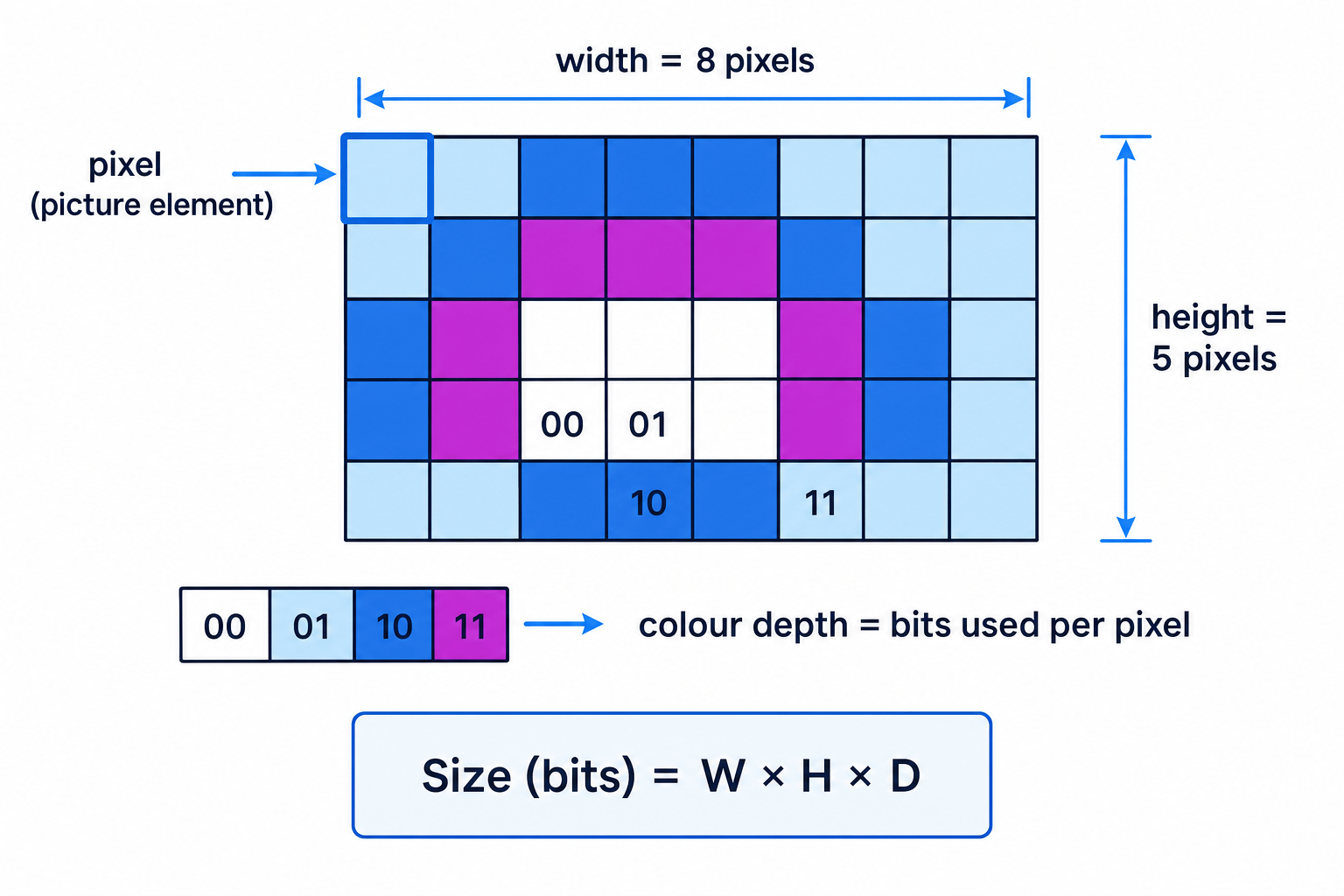
A digital image is made from many tiny points called pixels.
Definition
Pixel
Pixel is short for picture element. A pixel is a single point in an image, usually shown as a tiny square of one colour.
When you zoom far enough into a bitmap image, you can see the individual pixels. From normal viewing distance, your eyes blend the pixels together into a smooth-looking picture.
Bitmaps: images as grids of pixels
A bitmap represents an image as a grid of pixels. Each pixel has a stored value that tells the computer what colour that pixel should be.
The computer displays the image by drawing the pixels in their correct positions, row by row and column by column.
Key Idea
Bitmap idea
A bitmap is basically a grid: each square is a pixel, and each pixel needs binary data to describe its colour.
Image size: width x height
The image size of a bitmap is measured in pixels. It is written as:
width x height
For example, an image size of 800 x 600 means the image is 800 pixels wide and 600 pixels high.
Definition
Image size
For bitmaps, image size means the number of pixels across the image by the number of pixels down the image: width x height.
To find the total number of pixels, multiply the width by the height:
number of pixels=W×H\text{number of pixels} = W \times Hnumber of pixels=W×Hwhere WWW is the width in pixels and HHH is the height in pixels.
Example
Counting pixels in an image
An image has size 128 x 64. How many pixels does it contain?
-
Identify the width and height: W=128W = 128W=128 and H=64H = 64H=64.
-
Multiply width by height:
128×64=8192128 \times 64 = 8192128×64=8192 -
The image contains 8192 pixels. This does not yet include how many bits are needed for each pixel’s colour.
Colour depth: bits per pixel
Each pixel needs some binary data to represent its colour. The number of bits used for each pixel is called the colour depth.
Definition
Colour depth
Colour depth is the number of bits used to represent the colour of each pixel.
A higher colour depth means more possible bit patterns, so more possible colours can be represented.
For example:
- 1-bit colour depth gives 2 possible colours, such as black and white.
- 2-bit colour depth gives 4 possible colours, using codes such as 00, 01, 10 and 11.
- 8-bit colour depth gives 256 possible colours.
In general, a colour depth of DDD bits can represent:
2D possible colours2^D \text{ possible colours}2D possible coloursExample
Finding possible colours
A bitmap uses a colour depth of 3 bits. How many different colours can each pixel represent?
-
Each pixel has 3 bits, and each bit can be either 0 or 1.
-
Work out the number of bit patterns:
23=82^3 = 823=8 -
So each pixel can represent up to 8 colours, assuming each bit pattern is matched to a colour.
Common Mistake
Colour depth is not the number of colours
Colour depth is measured in bits per pixel, not colours. The number of possible colours is found from the number of bit patterns, such as 2D2^D2D.
How pixels and colour depth affect file size
A bitmap needs to store data for every pixel. So two things increase the file size:
- More pixels: a larger width or height means more pixels to store.
- Higher colour depth: more bits are stored for each pixel.
Key Idea
Two causes of bigger bitmap files
Bitmap file size increases if the image has more pixels or if each pixel uses more bits.
For GCSE calculations, use:
Size (bits)=W×H×D\text{Size (bits)} = W \times H \times DSize (bits)=W×H×D Size (bytes)=W×H×D8\text{Size (bytes)} = \frac{W \times H \times D}{8}Size (bytes)=8W×H×Dwhere:
- WWW = image width in pixels
- HHH = image height in pixels
- DDD = colour depth in bits
Common Mistake
What the GCSE formula ignores
The GCSE bitmap file size formula only uses width, height and colour depth. It ignores compression, file headers and metadata.
Example
Calculating bitmap file size
A bitmap image is 100 x 80 pixels and uses a colour depth of 4 bits. Calculate its size in bits, bytes and kB.
-
Identify the values: W=100W = 100W=100, H=80H = 80H=80 and D=4D = 4D=4.
-
Calculate the size in bits:
100×80×4=32000 bits100 \times 80 \times 4 = 32000 \text{ bits}100×80×4=32000 bits -
Convert bits to bytes by dividing by 8:
32000÷8=4000 B32000 \div 8 = 4000 \text{ B}32000÷8=4000 B -
Convert bytes to kB using 1 kB = 1000 B:
4000 B=4 kB4000 \text{ B} = 4 \text{ kB}4000 B=4 kB
Example
Comparing bitmap file sizes
Image A is 200 x 100 pixels with colour depth 4 bits. Image B is 200 x 100 pixels with colour depth 8 bits. How do their file sizes compare?
-
Both images have the same number of pixels:
200×100=20000 pixels200 \times 100 = 20000 \text{ pixels}200×100=20000 pixels -
Image A uses 4 bits per pixel:
20000×4=80000 bits20000 \times 4 = 80000 \text{ bits}20000×4=80000 bits -
Image B uses 8 bits per pixel:
20000×8=160000 bits20000 \times 8 = 160000 \text{ bits}20000×8=160000 bits -
Image B has double the colour depth, so it has double the file size.
Converting binary data into a bitmap
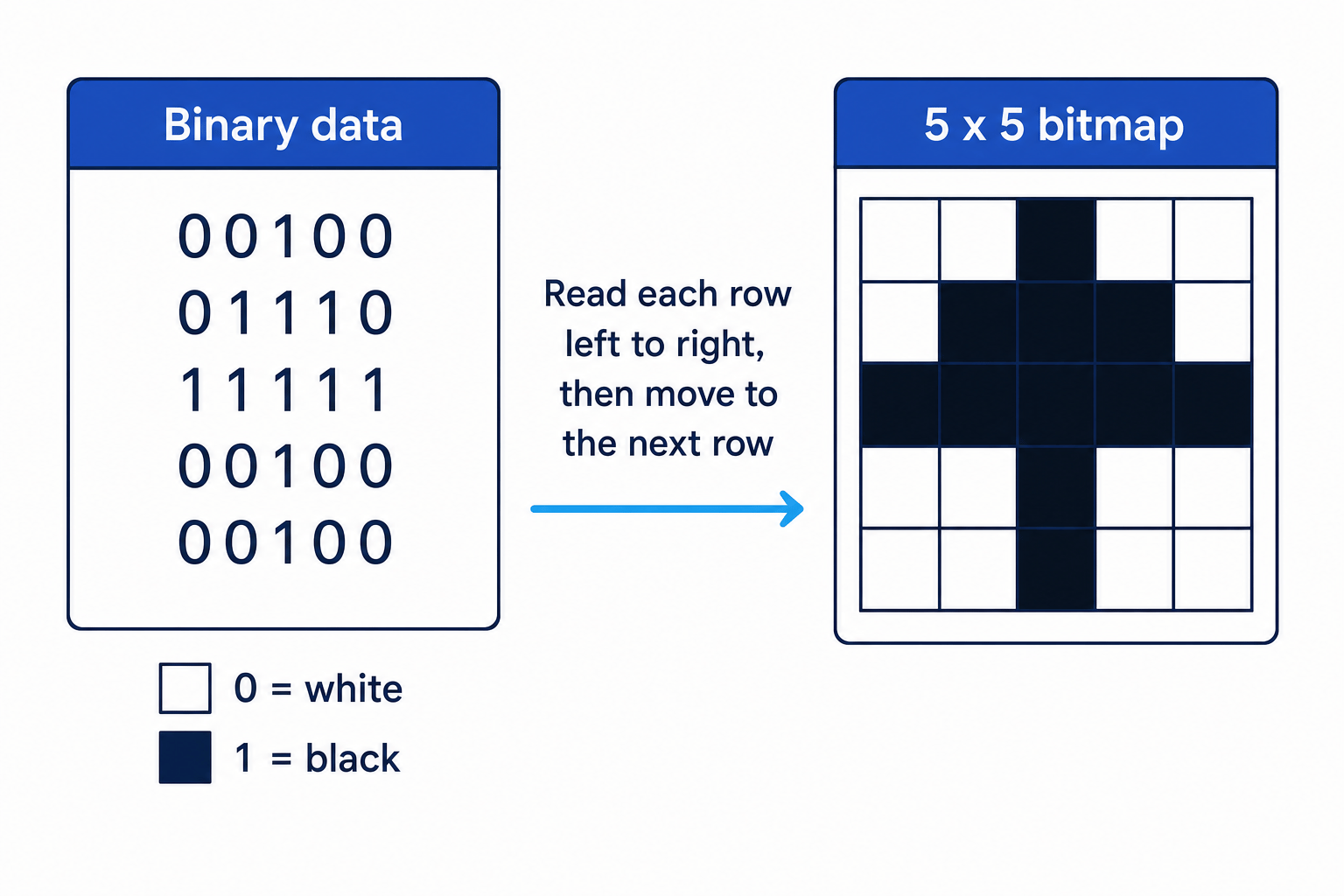
In a simple black-and-white bitmap, the colour depth is 1 bit. That means each bit represents one pixel.
A common mapping is:
- 0 = white pixel
- 1 = black pixel
The bits are normally read left to right, one row at a time.
Tip
Check the mapping
Do not assume 1 always means black and 0 always means white. Use the mapping given in the question.
Example
Drawing a bitmap from binary data
A 4 x 3 bitmap uses 1-bit colour depth. The mapping is 0 = white and 1 = black. The binary data is:
011011111001
-
Split the data into rows of 4 bits because the image width is 4 pixels:
- Row 1: 0110
- Row 2: 1111
- Row 3: 1001
-
Convert each bit using the mapping 0 = white and 1 = black.
-
Draw the rows in order:
- Row 1: ⬜ ⬛ ⬛ ⬜
- Row 2: ⬛ ⬛ ⬛ ⬛
- Row 3: ⬛ ⬜ ⬜ ⬛
Converting a bitmap into binary data
You can also go the other way: start with a pixel grid and write the binary data.
For a 1-bit black-and-white bitmap:
- Read the top row from left to right.
- Write the bit for each pixel.
- Move to the next row and repeat.
Example
Writing binary data from a bitmap
A 3 x 3 bitmap uses 1 = black and 0 = white:
- Row 1: ⬛ ⬜ ⬛
- Row 2: ⬜ ⬛ ⬜
- Row 3: ⬛ ⬜ ⬛
Write the binary data.
- Convert the first row: black, white, black becomes 101.
- Convert the second row: white, black, white becomes 010.
- Convert the third row: black, white, black becomes 101.
- Join the rows in order, giving 101010101.
Common Mistake
Forgetting colour depth when grouping bits
If colour depth is more than 1 bit, one pixel uses a group of bits. For example, with 2-bit colour depth, every pixel needs 2 bits, so 8 bits represent only 4 pixels.
Quick summary
- A pixel is a single point in an image.
- A bitmap stores an image as a grid of pixels.
- Image size is written as width x height in pixels.
- Colour depth is the number of bits used for each pixel.
- Bitmap size in bits is found using:
Exam technique
In the exam
- Write down WWW, HHH and DDD before calculating so you do not mix up width, height and colour depth.
- Calculate size in bits first using W×H×DW \times H \times DW×H×D, then divide by 8 if the question asks for bytes.
- For binary-to-bitmap questions, use the given width to split the data into rows, and always follow the colour mapping stated in the question.
Self review
Check yourself
- What does colour depth mean, and how is it different from the number of colours?
- How many bytes are needed for a 50 x 40 bitmap with 8-bit colour depth?
- If a 1-bit bitmap has width 5, how would you split the binary data into rows?

Recap questions
Test yourself with 5 quick questions on this guide. Answer them all correctly to complete it.
You've reached the end
Test yourself on this topic, or move on to the next guide.
How was this guide?