Revision notes for OCR GCSE Computer Science Operating systems. Open the guide for explanations and worked examples. Written against the OCR GCSE Computer Science (J277) specification, so the content matches what's examinable rather than general Computer Science background.
Operating systems
What you'll learn
- What an operating system is and why every general-purpose computer needs one.
- How an operating system provides a user interface.
- How it manages memory, multitasking, peripherals, users and files.
- How to recognise the correct operating system function in exam scenarios.
Systems software: the starting point
A computer has hardware: the physical parts such as the processor, RAM, keyboard, storage drive and printer.
It also has software: programs and data that tell the hardware what to do.
There are two main types of software at GCSE:
- Application software helps the user do a task, such as word processing, browsing the web or editing images.
- Systems software helps the computer run and provides a platform for applications.
Definition
Operating system
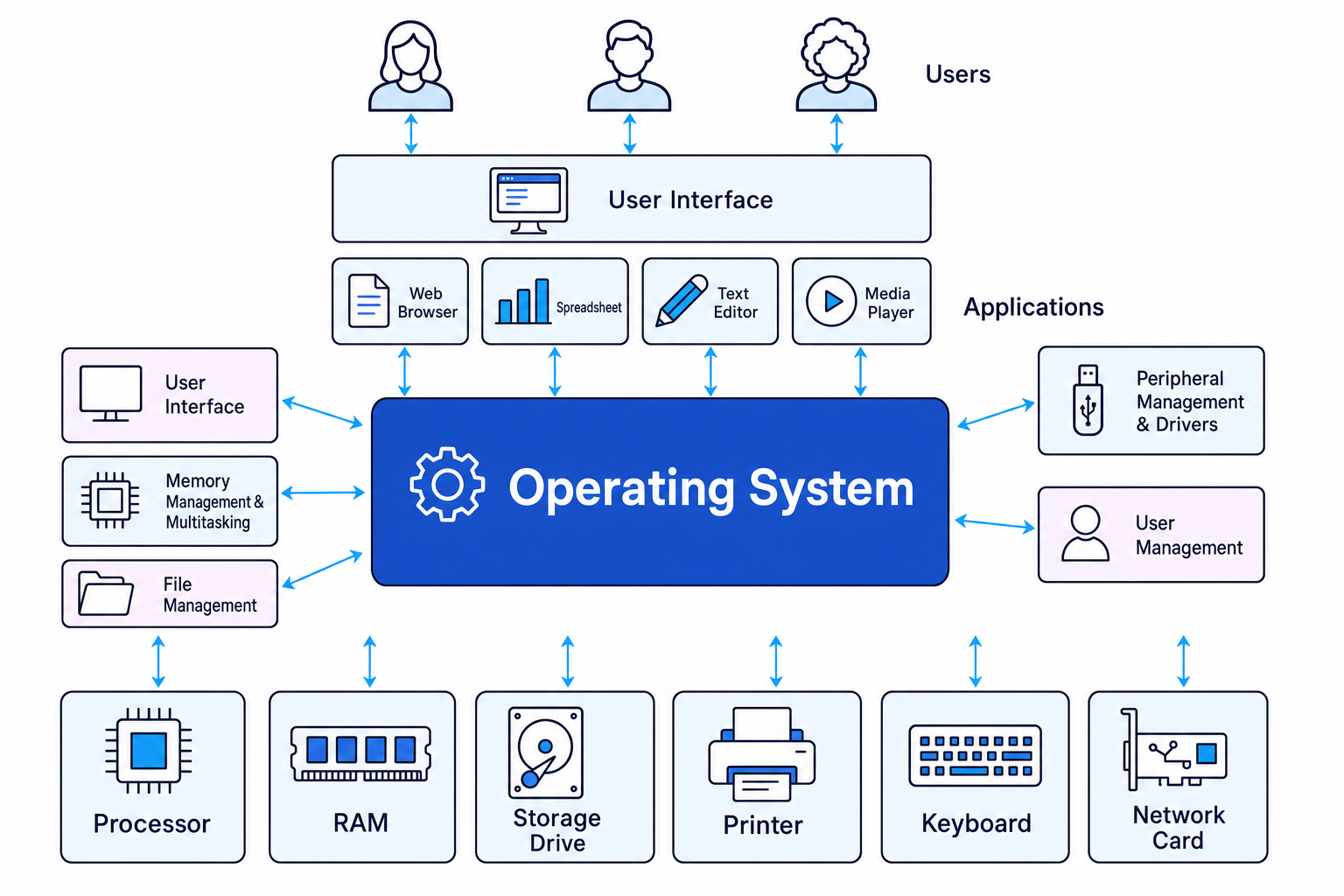
An operating system is systems software that manages the computer’s hardware and software resources, and provides an interface between the user, applications and the hardware.
The operating system, often shortened to OS, is the “manager” of the computer. Windows, macOS, Linux, iOS and Android are all examples of operating systems.
This diagram shows the operating system sitting between users, applications and hardware.
Key Idea
Main purpose
The operating system hides the complexity of the hardware so users and applications can use the computer safely and efficiently.
Example
Identifying systems software
A student says: “My laptop has a web browser, a spreadsheet and Windows installed.” Which one is the operating system?
- The web browser is used to access websites, so it is application software.
- The spreadsheet is used to organise and calculate data, so it is also application software.
- Windows manages the laptop’s hardware, runs applications and provides the interface, so it is the operating system.
The user interface
A user interface is the way a user interacts with a computer system. It allows the user to enter commands, open programs, change settings, manage files and receive feedback from the system.
Definition
User interface
A user interface is the part of the operating system that allows the user to communicate with the computer.
Common features of a user interface
A user interface may include:
- Windows: separate areas on the screen for different applications or tasks.
- Icons: small pictures representing files, folders, apps or actions.
- Menus: lists of options the user can choose from.
- Pointers: cursors controlled by a mouse, trackpad or touchscreen.
- Text commands: typed instructions, often used in a command-line interface.
- Dialogue boxes and messages: prompts, warnings and feedback.
- Accessibility features: options such as screen readers, magnification, high contrast or voice control.
A graphical user interface, or GUI, uses visual items such as windows, icons, menus and pointers. A command-line interface, or CLI, requires the user to type commands.
Common Mistake
Interface is not the same as application
A web browser may have its own menus and buttons, but the operating system provides the overall user interface that lets you open, close, switch between and manage applications.
Example
Choosing a suitable interface
A technician needs to configure a server quickly using typed commands. A new primary-school pupil needs to open learning apps on a tablet. Which interface is more suitable for each?
- The technician is likely to know exact commands and may value speed and precision, so a command-line interface could be suitable.
- The pupil needs something visual and easy to recognise, so a graphical or touch-based interface would be more suitable.
- The choice depends on the user’s needs: expert users may prefer precise commands, while less experienced users often benefit from icons, menus and touch controls.
Memory management
The operating system manages main memory, usually RAM.
RAM is fast, temporary memory used to store programs and data currently in use. When an application runs, the operating system must make sure the application and its data are loaded into memory so the processor can work with them.
Definition
Memory management
Memory management is the operating system’s control of main memory, including allocating memory to programs, keeping track of used and free memory, and managing data being transferred in and out of memory.
What memory management does
The operating system:
- Loads programs and data into RAM when they are needed.
- Allocates areas of memory to each running application.
- Keeps track of which parts of memory are currently in use.
- Frees memory when a program is closed.
- Helps stop one program from overwriting another program’s memory.
- Manages data being transferred between memory and other parts of the computer system.
For GCSE, you only need the overall idea: the OS decides how memory is shared between running programs. You do not need the detailed internal techniques used to do this.
Multitasking
Multitasking means the computer appears to run more than one program at the same time.
For example, you might have a web browser, music player and word processor open at once. The processor can only carry out a limited number of instructions at any instant, so the operating system manages how processor time and memory are shared between tasks.
Definition
Multitasking
Multitasking is when an operating system allows multiple programs or processes to be in use at the same time by managing processor time, memory and other resources.
A process is a program that is currently running. The operating system must keep track of active processes and make sure each one gets the resources it needs.
Key Idea
Memory and multitasking work together
Multitasking depends on memory management because each running program needs its own space in RAM.
Example
Explaining multitasking
A student is writing an essay, streaming music and downloading a file at the same time. Explain how the operating system supports this.
- The OS keeps the word processor, music player and download process in memory so their data and instructions are available when needed.
- It allocates resources such as RAM and processor time so each task can continue running without one program taking over the whole system.
- It manages input and output, such as keyboard input for the essay, audio output for the music and network data for the download.
Peripheral management and drivers
A peripheral is a hardware device connected to the computer system. Examples include a keyboard, mouse, printer, monitor, scanner, webcam and external storage device.
The processor and peripherals need to transfer data between each other. This process must be managed because devices work at different speeds and may need different instructions.
Definition
Driver
A device driver is software that allows the operating system to communicate with and control a specific hardware device.
What peripheral management does
The operating system:
- Detects and manages connected devices.
- Sends data to output devices, such as monitors and printers.
- Receives data from input devices, such as keyboards and mice.
- Uses drivers so the OS can control specific makes and models of device.
- Manages device status, such as whether a printer is ready, offline or out of paper.
- Controls queues where needed, such as jobs waiting to be printed.
Common Mistake
Driver versus device
A driver is not the physical printer, keyboard or scanner. It is software that helps the operating system communicate with that device.
Example
Printing a document
You click Print in a word processor. What role does the operating system play?
- The application sends a print request to the operating system rather than controlling the printer directly.
- The OS uses the printer driver to convert the request into instructions the specific printer can understand.
- The OS manages the transfer of data to the printer and may place the job in a print queue if other jobs are waiting.
User management
On many computer systems, different people use the same device or network. The operating system needs to manage who can access the system and what they are allowed to do.
Definition
User management
User management is the operating system’s control of user accounts, access rights and security settings.
User management functions
The OS may provide:
- User accounts: separate logins for different users.
- Authentication: checking a user is who they claim to be, often using a password, PIN, fingerprint or other method.
- Access rights: permissions that decide what a user can read, edit, delete or run.
- Security controls: protecting files, settings and system areas from unauthorised users.
- Personal settings: different desktop layouts, themes or preferences for each user.
In a school, for example, a student account should not be able to install software on every computer or delete another student’s files. A network administrator account would have more permissions.
Example
Setting access rights
A school has student accounts, teacher accounts and administrator accounts. A folder contains exam papers that students must not open. How should access rights be set?
- Students should be denied access because the folder contains confidential materials.
- Teachers may need read access so they can view or print the papers.
- Administrators may need full access so they can manage, move, back up or change the folder permissions.
File management
A file is a collection of data stored under a name, such as homework.docx, photo.jpg or program.py.
A folder, also called a directory, is used to organise files. Folders can contain files and other folders.
Definition
File management
File management is the operating system’s organisation and control of files and folders on storage devices.
What file management does
The operating system allows users and applications to:
- Create files and folders.
- Give files meaningful names.
- Save files to storage.
- Open and load files.
- Copy, move, rename and delete files.
- Organise files into folders.
- Search for files.
- Store information about files, such as file type, size and date modified.
- Apply access rights so only authorised users can open or change certain files.
When you save a file, the operating system handles where it is stored on the storage device. You do not need to know the low-level details of how the storage device records every part of the file.
Tip
Remember the five functions
A useful checklist is U M P U F: User interface, Memory and multitasking, Peripheral management, User management, File management.
Example
Saving and moving a file
You save an essay called climate_change.docx into a folder called Geography, then move it into a folder called Homework. Which file management tasks are involved?
- Saving the file stores the data on a storage device under the filename
climate_change.docx. - Placing it in
Geographyallocates it to a folder so it can be organised and found later. - Moving it to
Homeworkchanges its folder location while keeping the file available to open, rename, copy or delete.
Pulling the functions together
In real use, several operating system functions often happen together.
Imagine you log in, open a presentation, connect a projector and play a video:
- The user interface lets you click icons, menus and buttons.
- User management checks your account and permissions.
- File management finds and opens the presentation file.
- Memory management loads the presentation software and file data into RAM.
- Multitasking lets the presentation run while other background processes continue.
- Peripheral management uses a driver to send video output to the projector.
Key Idea
One scenario, many functions
Exam questions often describe a situation where several OS functions are involved. Look for what is being managed: the user, the file, memory, a device or the interface.
Exam technique
In the exam
- If asked for the purpose of an operating system, say that it manages hardware/software resources and provides an interface between the user, applications and hardware.
- If given a scenario, identify the resource being controlled: files, users, memory, processor time or peripherals.
- For “explain” questions, do not just name the function — add what it does, such as “allocates RAM to running applications” or “uses drivers to communicate with hardware devices”.
Self review
Check yourself
- What is the difference between application software and systems software?
- How does memory management help multitasking?
- Why does a printer need a device driver?

Recap questions
Test yourself with 5 quick questions on this guide. Answer them all correctly to complete it.
You've reached the end
Test yourself on this topic, or move on to the next guide.
How was this guide?