Revision notes for Edexcel GCSE Computer Science Purpose of an operating system. Open the guide for explanations and worked examples. Written against the Edexcel GCSE Computer Science (1CP2) specification, so the content matches what's examinable rather than general Computer Science background.
Purpose of an operating system
What you'll learn
- What an operating system is and why a computer needs one.
- How an operating system manages files, processes, peripherals and users.
- How to recognise which operating system function is being described in a scenario.
- Common exam traps, such as confusing application software with system software.
Starting point: hardware, software and resources
A computer system is made from hardware and software.
Hardware means the physical parts of a computer system, such as the CPU, RAM, keyboard, monitor, printer and storage drive.
Software means programs and data that tell the hardware what to do. For example, a web browser, a game, a word processor and an operating system are all software.
A resource is something in the computer system that programs need to use. Resources include processor time, storage space, files, printers, network connections and input devices.
What is an operating system?
Definition
Operating system
An operating system is system software that manages the computer’s hardware and software resources, and provides services that allow users and applications to use the computer.
System software is software that helps run or control the computer system itself. This is different from application software, which helps the user do a specific task, such as writing a document or editing an image.
Examples of operating systems include Windows, macOS, Linux, Android and iOS.
Key Idea
Main purpose
The operating system acts as the layer between the user, application software and the hardware. It hides much of the complexity of the hardware so that programs and users can work with the computer more easily.
The diagram shows the operating system in the middle: users and applications request services, and the operating system controls access to hardware resources.
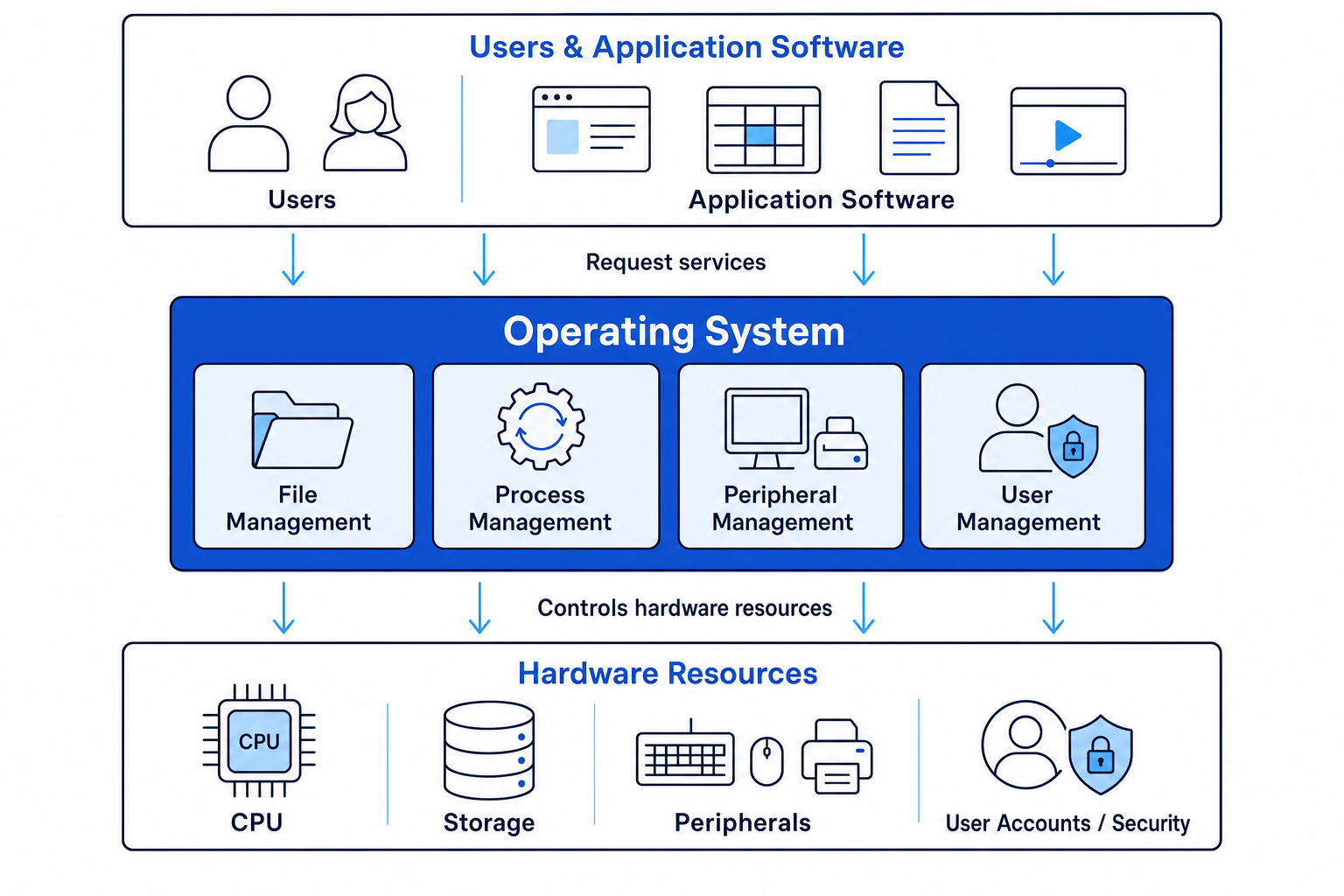
Why an operating system is needed
Without an operating system, each program would have to deal directly with the hardware. That would be difficult, unsafe and inefficient.
For example, every program would need to know exactly how to save data to a particular storage device, how to send data to a printer, and how to avoid interfering with other running programs.
Instead, the operating system provides a consistent way for programs to ask for these services.
Analogy
The operating system as a manager
Think of the operating system as a manager in a busy office. Workers do not all fight over the printer, filing cabinet and meeting rooms directly. The manager organises access so jobs happen in a controlled order.
The four functions in this specification
For Edexcel GCSE Computer Science 1CP2, you need to understand these operating system functions:
- File management
- Process management
- Peripheral management
- User management
These are not four separate programs you open like apps. They are responsibilities handled by the operating system.
Example
Classifying operating system jobs
A teacher says: “A student logs in, opens a presentation, prints it, and leaves a video export running in the background.”
- Identify the user-related action: the student logging in involves checking an account and password, so this is user management.
- Identify the file-related action: opening the presentation involves locating and loading a stored file, so this is file management.
- Identify the device-related action: printing uses an external device and sends output to it, so this is peripheral management.
- Identify the running-program action: the video export continuing in the background is a running task being controlled by the operating system, so this is process management.
File management
Definition
File management
File management is the operating system’s control of how files are stored, organised, named, accessed, moved, copied and deleted.
A file is a stored item of data, such as a document, image, program, video or spreadsheet.
A folder, also called a directory, is a container used to organise files and other folders.
The operating system manages the file system. The file system is the method used to organise data on a storage device so that files can be found again.
File management includes:
- Creating, opening, saving, copying, moving, renaming and deleting files.
- Organising files into folders/directories.
- Keeping track of where files are stored on a storage device.
- Storing file details, such as name, size, type and date modified.
- Controlling who has permission to read, edit or delete a file.
The operating system does not usually make the content of your document for you. The application software does that. The operating system handles the storage and organisation behind the scenes.
Example
Saving a document
You are writing a report in a word processor and click Save.
- Separate the application from the operating system: the word processor creates the document content, but it asks the operating system to store the file.
- Check the file location: the operating system uses the chosen folder path and filename to decide where the file should be stored.
- Apply access rules: if your account has permission to save in that folder, the operating system allows the write operation; if not, it blocks it.
- Update the file system: the operating system records the file’s details, such as its name, location, size and modified date, so it can be opened again later.
Common Mistake
Application versus file management
Do not say “the operating system writes the essay” or “the operating system edits the photo”. The application creates or changes the content; the operating system manages how the file is stored and accessed.
Process management
Definition
Process management
Process management is the operating system’s control of programs and tasks while they are running.
A process is a program or part of a program that is currently running.
For example, if you open a web browser, a music player and a word processor at the same time, the operating system manages several processes.
Modern computers often appear to do many things at once. This is called multitasking: the operating system shares processor time between processes so that several tasks can make progress.
The operating system may manage processes by:
- Starting and stopping programs.
- Allocating CPU time to different processes.
- Switching between processes quickly.
- Keeping track of which processes are running, waiting or blocked.
- Preventing one process from interfering with another.
- Giving higher priority to important tasks when needed.
The CPU can only carry out instructions in a controlled sequence, so the operating system must decide which process gets attention and when.
Definition
Scheduler
The scheduler is the part of the operating system that decides which process should use the CPU next.
Example
Managing several running programs
You are listening to music, downloading a file and typing in a document.
- Identify the active processes: the music player, download task and word processor are all processes because they are currently running.
- Consider what each process needs: the music player needs regular CPU time to avoid audio gaps, the download task needs network and storage access, and the word processor needs to respond quickly when you type.
- Apply process management: the operating system switches CPU time between these processes so they all continue without one program taking complete control.
- Prioritise responsiveness: if you type, the operating system should quickly give attention to the word processor so the letters appear without a noticeable delay.
Tip
Spotting process management
If a question mentions programs running, multitasking, CPU time, starting or stopping tasks, or background tasks, it is probably about process management.
Peripheral management
Definition
Peripheral management
Peripheral management is the operating system’s control of input, output and storage devices connected to the computer system.
A peripheral is a device connected to or part of a computer system that provides input, output or storage. Examples include a keyboard, mouse, monitor, printer, scanner, webcam, speakers and external drive.
The operating system allows software to use peripherals without each program needing to understand every device in detail.
A device driver is software that allows the operating system to communicate with a specific hardware device.
For example, a printer driver tells the operating system how to send data to that printer model. A graphics driver helps the operating system communicate with the graphics hardware.
Peripheral management includes:
- Receiving input from devices such as keyboards, mice and scanners.
- Sending output to devices such as monitors, printers and speakers.
- Using device drivers to communicate with hardware.
- Managing queues for shared devices, such as printers.
- Handling errors, such as a printer being out of paper.
- Controlling access so two programs do not use a device in a conflicting way.
Spooling and buffering
A buffer is a temporary storage area used while data is being transferred between devices or programs that work at different speeds.
Spooling is when data is placed in a queue, usually on storage, so it can be sent to a device later. Printing often uses spooling because the printer is much slower than the computer.
Example
Printing while continuing to work
You click Print on a large document and then continue editing another file.
- Identify the slow device: the printer is slower than the CPU and storage, so the computer should not have to wait doing nothing until printing finishes.
- Use a print queue: the operating system places the print job into a queue, often using spooling.
- Send data gradually: the operating system sends the document to the printer at a speed the printer can handle.
- Allow other work to continue: because the print job is managed by the operating system, you can keep using other applications while printing happens in the background.
Common Mistake
Driver is not the device
A device driver is software that helps the operating system use a device. It is not the physical device itself.
User management
Definition
User management
User management is the operating system’s control of user accounts, logins, permissions and access to resources.
A user account is a set of details that identifies a particular user of a computer system. It may include a username, password, profile settings and access rights.
Access rights, also called permissions, control what a user is allowed to do. For example, one user may be allowed to read a file but not delete it.
User management includes:
- Creating and deleting user accounts.
- Checking usernames and passwords during login.
- Storing user settings and preferences.
- Controlling access to files, folders, applications and devices.
- Giving different users different permissions.
- Supporting administrator accounts with extra privileges.
- Helping protect private data from unauthorised access.
An administrator is a user with higher-level permissions. Administrators can often install software, change system settings and manage other accounts.
Example
Restricting access to a shared computer
A school computer is used by students and teachers. Students must not delete system files or access teacher documents.
- Separate the users: the operating system uses different accounts for students and teachers so their access can be controlled separately.
- Assign permissions: students may be given permission to read and save files in their own area, but not to open teacher folders or delete system files.
- Apply checks at login and file access: when a student logs in or tries to open a protected folder, the operating system checks their account permissions.
- Protect the system: by blocking unauthorised actions, user management helps keep data private and the computer system reliable.
Key Idea
Security and organisation
User management is not just about passwords. It is also about controlling what each user can access and change after they have logged in.
Bringing the four functions together
In real computer use, the operating system often performs several functions at the same time.
Suppose you log into a laptop, open a spreadsheet from your documents folder, play music through headphones and run a virus scan in the background.
The operating system is:
- Managing your login and permissions through user management.
- Finding and opening the spreadsheet using file management.
- Sending sound to the headphones using peripheral management.
- Running the spreadsheet, music player and virus scan using process management.
Tip
Four-function memory aid
Use FPPU: Files, Processes, Peripherals, Users. If a scenario asks what the operating system does, check which of these four areas the action belongs to.
What the exam may ask you to do
You may be asked to:
- State the purpose of an operating system.
- Explain why an operating system is needed.
- Describe one or more operating system functions.
- Match a scenario to file, process, peripheral or user management.
- Explain how the operating system helps with security, multitasking or device use.
Strong answers usually name the correct function and then explain what the operating system actually does.
For example, instead of writing:
“Printing is peripheral management.”
A better answer is:
“Printing uses peripheral management because the operating system sends output to the printer, often using a device driver and a print queue.”
Exam technique
In the exam
- Name the function first: decide whether the scenario is about file, process, peripheral or user management.
- Explain the action: say what the operating system does, such as allocating CPU time, checking permissions or sending data to a device driver.
- Link to the benefit: add why it matters, such as allowing multitasking, protecting files, organising storage or letting applications use hardware safely.
Self review
Check yourself
- What is the difference between application software and an operating system?
- Which operating system function is involved when a background download continues while you type?
- Why are user permissions useful on a shared school computer?
You've reached the end
Test yourself on this topic, or move on to the next guide.
How was this guide?