Revision notes for Edexcel GCSE Computer Science Purpose of utility software. Open the guide for explanations and worked examples. Written against the Edexcel GCSE Computer Science (1CP2) specification, so the content matches what's examinable rather than general Computer Science background.
Purpose of utility software
What you'll learn
- What utility software is and how it fits into system software.
- The purpose and functionality of file repair, backup, data compression, disk defragmentation and anti-malware tools.
- How to match a utility to a problem in a scenario.
- Common exam traps, such as confusing backup with file repair.
Starting point: software and utilities
Software means the programs and data that tell a computer what to do. A program is a set of instructions that can be executed by a computer.
There are two broad types you should be able to separate:
- Application software helps the user carry out a task, such as writing a document, browsing the web or editing an image.
- System software manages the computer itself. This includes the operating system (OS), which controls hardware and provides services for programs.
Utility software is part of system software. It supports the computer system rather than being the main tool the user works in.
Definition
Utility software
Utility software is a type of system software that helps maintain, protect, manage or optimise a computer system, rather than helping the user create work directly.
Key Idea
Purpose vs functionality
- Purpose means why the utility exists: the problem it solves.
- Functionality means what the utility actually does: the features or actions it performs.
For example, the purpose of backup software is to protect against data loss. Its functionality might include making scheduled copies of files and restoring them later.
File repair
A file is a named collection of data stored on secondary storage, such as a document, image, spreadsheet or program. Secondary storage means long-term storage, such as an HDD, SSD or USB flash drive.
A file can become corrupted, meaning some of its data or structure has been damaged. This might happen because of a software crash, power failure, storage fault or interrupted save.
Definition
File repair utility
A file repair utility attempts to fix a corrupted or damaged file so that it can be opened, read or recovered.
A file repair utility may:
- scan the file for errors or missing sections
- rebuild a file header, which is information at the start of a file that helps software interpret it
- recover readable data into a new file
- check the file system, which is how the OS organises files on storage
- report that repair is not possible if too much data is missing
Common Mistake
Repair is not magic
File repair cannot always recreate missing data. If the damaged data is gone, the safest recovery method may be restoring from a backup.
Example
Choosing file repair or restore
A spreadsheet will not open. The user has a backup from yesterday, but they also worked on the file this morning.
- Try file repair first, because it attempts to recover the current damaged file and may preserve this morning’s changes.
- If repair fails or only recovers part of the spreadsheet, restore yesterday’s backup so the user has a working version again.
- The best explanation mentions the trade-off: file repair may save the newest data, while backup restore is more reliable if the current file is badly corrupted.
Backup
A backup is a separate copy of data kept so that the original can be recovered if it is lost, damaged, deleted or infected by malware.
To restore means to copy backed-up data back onto the working system after a problem.
Definition
Backup utility
A backup utility creates and manages copies of files or folders so data can be restored after loss, damage or corruption.
Backup utilities often provide functionality such as:
- selecting which files, folders or drives to copy
- running backups automatically on a schedule
- storing copies on an external drive, network storage or cloud storage
- restoring selected files or a whole backup set
- creating a full backup, which copies all selected data
- creating an incremental backup, which copies only data changed since the previous backup
The purpose is not just “to copy files”. The purpose is to reduce the impact of data loss.
Tip
Good backup thinking
A useful backup is stored separately from the original. If the only backup is on the same drive as the original, a single drive failure could destroy both.
Example
Choosing a backup method
A small business changes customer files every day and cannot afford to lose them.
- The main risk is data loss from deletion, hardware failure, corruption or malware, so a backup utility is needed to create recoverable copies.
- Because the files change daily, scheduled daily backups reduce the chance of losing recent work without relying on a person to remember.
- Incremental backups are suitable after an initial full backup because they copy only changed files, saving time and storage space compared with copying everything every day.
Data compression
Data compression means reducing the number of bits needed to store or transmit data. Decompression means expanding the compressed data back into a usable form.
Definition
Data compression utility
A data compression utility reduces file sizes, often by creating compressed archive files that take up less storage space and can be transferred more quickly.
A compressed archive is a single file that can contain one or more compressed files and folders.
There are two important types of compression:
- Lossless compression allows the original data to be reconstructed exactly. This is needed for text files, programs and spreadsheets, where every bit matters.
- Lossy compression permanently removes some data, usually from media such as images, audio or video. This can reduce file size more, but quality may be reduced.
For utility software such as ZIP tools, lossless compression is often used because the files must be restored exactly.
Example
Working out compressed file size
A folder is 80 MiB before compression. A compression utility reduces its size by 25%.
- Work out the amount saved: 0.25×80 MiB=20 MiB0.25 \times 80 \text{ MiB} = 20 \text{ MiB}0.25×80 MiB=20 MiB.
- Subtract the saved amount from the original size: 80 MiB−20 MiB=60 MiB80 \text{ MiB} - 20 \text{ MiB} = 60 \text{ MiB}80 MiB−20 MiB=60 MiB.
- The compressed folder is 60 MiB, so it uses less storage and should be quicker to transfer, but it may need to be decompressed before the files are used.
Common Mistake
Lossless and lossy are not interchangeable
Do not say lossy compression is suitable for any file. A program or spreadsheet must be restored exactly, so it needs lossless compression.
Disk defragmentation
A hard disk drive (HDD) stores data magnetically on spinning disks. It uses a moving read/write head to access data.
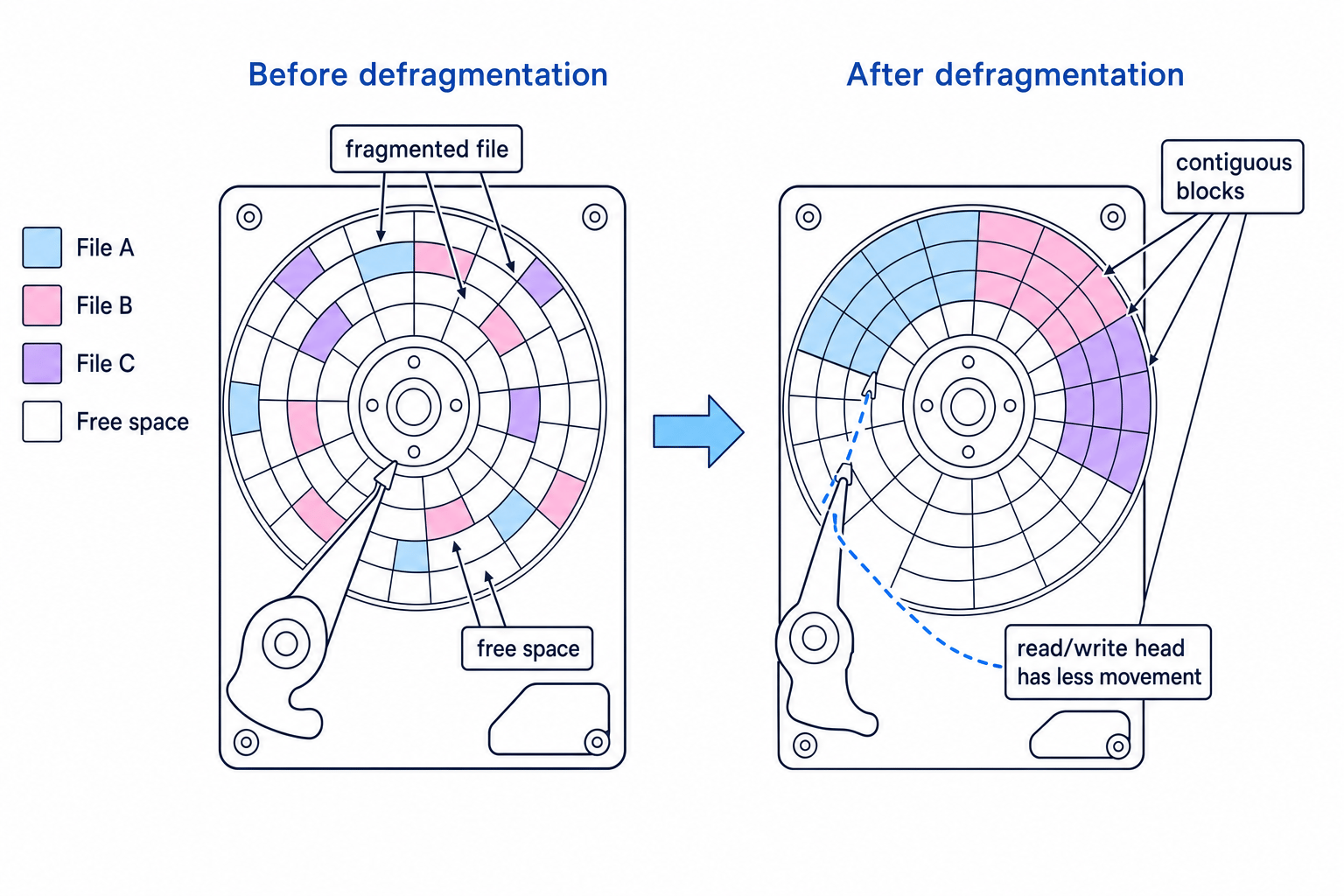
Over time, files can become fragmented. This means parts of the same file are stored in different places on the disk rather than together.
Definition
Disk defragmentation
Disk defragmentation reorganises data on a hard disk drive so that the parts of each file are stored closer together, ideally in contiguous blocks.
Contiguous means next to each other with no gaps between the blocks.
The purpose of disk defragmentation is to improve HDD performance. If a file is stored in many separate locations, the read/write head has to move around more to load it. Grouping file parts together can reduce this movement and make reading files faster.
The diagram shows how defragmentation groups scattered file blocks together and collects free space into a larger area.
Example
Explaining why defragmentation helps
A desktop computer with an HDD takes a long time to open large video files. A disk report says the files are heavily fragmented.
- Because the storage device is an HDD, the read/write head physically moves to different disk locations to read data.
- If a large video is fragmented, the head must move repeatedly between scattered blocks, increasing access time.
- Defragmentation rearranges the blocks so more of the video is stored together, reducing head movement and improving loading speed.
Common Mistake
SSDs are different
A solid-state drive (SSD) has no moving read/write head. Defragmentation is mainly useful for HDDs; modern operating systems usually optimise SSDs in different ways.
Anti-malware
Malware means malicious software: software designed to damage, disrupt, spy on or gain unauthorised access to a computer system. Examples include viruses, ransomware and spyware.
Definition
Anti-malware utility
Anti-malware software detects, blocks, quarantines or removes malware to help protect the computer system and its data.
Anti-malware utilities may provide:
- real-time scanning, where files are checked as they are opened, downloaded or run
- scheduled scans of files, folders or the whole system
- signature-based detection, where known malware patterns are matched
- heuristic detection, where suspicious behaviour is identified even if the malware is not already known
- quarantine, where a suspicious file is isolated so it cannot run or spread
- updates to malware definitions so newer threats can be recognised
The purpose is protection: preventing data theft, damage, unauthorised access and system disruption.
Example
Responding to a suspected infection
A user downloads an email attachment and anti-malware flags it as suspicious.
- Real-time scanning checks the attachment before or as it runs, reducing the chance that malware can execute.
- If the file matches a known signature or behaves suspiciously, the utility can quarantine it so it is isolated from the rest of the system.
- The user can then run a full scan and delete the file if confirmed as malware, helping prevent data loss or further infection.
Common Mistake
Anti-malware must be updated
Installing anti-malware once is not enough. It needs updates so it can recognise newer malware threats.
Quick comparison
| Utility | Main purpose | Functionality to mention |
|---|---|---|
| File repair | Recover damaged or corrupted files | Scans for errors, rebuilds file structure, recovers readable data |
| Backup | Recover from data loss | Creates scheduled separate copies and restores them later |
| Data compression | Reduce storage space or transfer time | Compresses files into smaller archives and decompresses them when needed |
| Disk defragmentation | Improve HDD access speed | Moves fragmented file parts into contiguous blocks |
| Anti-malware | Protect against malicious software | Scans, detects, quarantines, removes and updates against threats |
Exam technique
In the exam
- Name the utility, then explain both its purpose and its functionality. For example: “Backup software creates separate copies so data can be restored after loss.”
- Match the utility to the scenario: corrupted file means file repair, data loss risk means backup, low storage or transfer size means compression, fragmented HDD means defragmentation, malware risk means anti-malware.
- Avoid vague answers like “it makes the computer better”. Say exactly what is being protected, repaired, reduced, reorganised or removed.
Self review
Check yourself
- What is the difference between the purpose and the functionality of a utility?
- Why does disk defragmentation improve an HDD but not an SSD in the same way?
- Which utility would you choose for a corrupted file, a full storage drive, and a suspected virus infection?
You've reached the end
Test yourself on this topic, or move on to the next guide.
How was this guide?