Revision notes for AQA GCSE Computer Science Systems architecture. Open the guide for explanations and worked examples. Written against the AQA GCSE Computer Science (8525) specification, so the content matches what's examinable rather than general Computer Science background.
Systems architecture
What you'll learn
- How the CPU uses its main components to process instructions.
- How the Fetch–Decode–Execute cycle runs programs.
- The differences between registers, cache, RAM, ROM and secondary storage.
- How CPU performance, cloud storage and embedded systems are explained in GCSE answers.
The big picture: what is a computer system doing?
A computer system runs programs by storing instructions and data, then processing them. The processor does the “thinking”, memory holds what is currently needed, and storage keeps data long term.
Definition
Central processing unit (CPU)
The central processing unit (CPU) is the main processor in a computer. It fetches instructions from memory, decodes what they mean, and executes them.
Definition
Main memory
Main memory is memory that the CPU can directly access, such as RAM and ROM. It is used to hold instructions and data needed by the computer system.
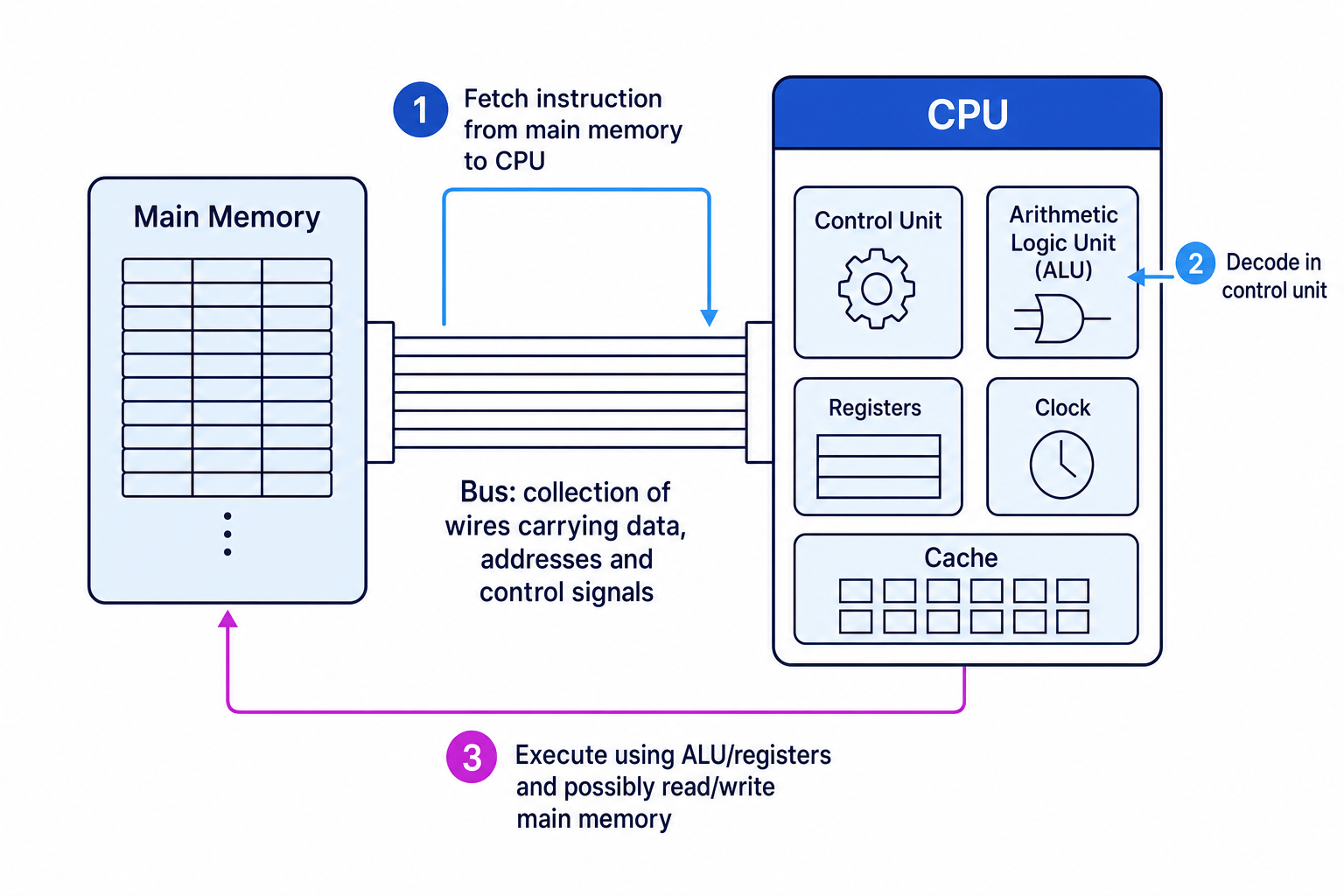
Main CPU components
Arithmetic logic unit (ALU)
The arithmetic logic unit (ALU) carries out calculations and logical operations.
Arithmetic means maths operations such as addition and subtraction. Logic means comparisons such as checking whether one value is equal to, greater than, or less than another value.
Control unit
The control unit coordinates the CPU. It decodes instructions and sends control signals so the right parts of the CPU, memory and other components do the right job at the right time.
Clock
The clock sends regular timing signals used to synchronise CPU operations.
The clock does not “tell the time” like a wall clock. It produces pulses. Each pulse helps the CPU move through tiny stages of work.
Registers
A register is a very small, very fast storage location inside the CPU.
Registers temporarily hold instructions, data, addresses or results while the CPU is processing them.
Tip
Registers in AQA GCSE
You do not need to learn named registers for this specification. You just need to know that registers are tiny, fast storage locations inside the CPU.
Bus
A bus is a collection of wires through which data and signals are transmitted from one component to another.
For example, a bus can carry information between main memory and the CPU.
Key Idea
CPU components work as a team
The control unit directs operations, the ALU carries out calculations and comparisons, registers hold temporary values, the clock keeps everything synchronised, and buses move data and signals between components.
The Fetch–Decode–Execute cycle
The CPU continually repeats the Fetch–Decode–Execute cycle to run programs.
Fetch
The next instruction is fetched from main memory and brought into the CPU.
Decode
The control unit decodes the instruction. This means it works out what operation needs to happen.
Execute
The instruction is carried out. This might involve using the ALU, reading data from memory, writing data back to memory, or changing what instruction is fetched next.
Example
Following an instruction through the CPU
A program instruction says to add 5 to a value already stored in memory.
- The CPU fetches the instruction from main memory using the bus, so the instruction is now available inside the CPU.
- The control unit decodes the instruction and identifies that it is an arithmetic operation involving the value 5 and another value from memory.
- The needed value is brought into the CPU, and the ALU executes the addition using values held temporarily in registers.
- The result is stored in a register or written back to main memory, then the CPU continues with the next instruction.
Common Mistake
Fetch does not mean fetch data from the internet
In this topic, fetch means getting the next program instruction from main memory into the CPU.
What affects CPU performance?
CPU performance means how quickly and effectively the CPU can process instructions.
Clock speed
Clock speed is the number of clock cycles per second. It is often measured in gigahertz, written as GHz.
A higher clock speed usually means the CPU can process more instructions per second, but it is not the only factor.
Number of processor cores
A processor core is a processing unit inside a CPU that can independently process instructions.
A CPU with more cores can often do more tasks at the same time. For example, one core might handle a game while another handles background tasks.
However, extra cores only help fully when the software can make use of them.
Cache size
Cache is small, very fast memory close to or inside the CPU. It stores frequently used instructions and data.
A larger cache can improve performance because the CPU can get more of what it needs from fast cache instead of waiting for slower RAM.
Example
Comparing CPU upgrades
A computer is upgraded from a 2.4 GHz dual-core CPU with 2 MB cache to a 3.2 GHz quad-core CPU with 8 MB cache.
- The higher clock speed means the new CPU can complete more clock cycles per second, so it may process instructions faster.
- The increase from 2 cores to 4 cores means the CPU can handle more tasks at once, especially if the software is designed to use multiple cores.
- The larger cache means more frequently used data and instructions can be stored close to the CPU, reducing slower accesses to RAM.
- Overall, the new CPU is likely to perform better, but the exact improvement depends on the task and the software.
Common Mistake
Bigger number does not always mean twice as fast
A 4-core CPU is not automatically twice as fast as a 2-core CPU. Some programs cannot split their work evenly across multiple cores.
Types of memory
Computers use different types of memory because there is always a trade-off between speed, capacity and cost.
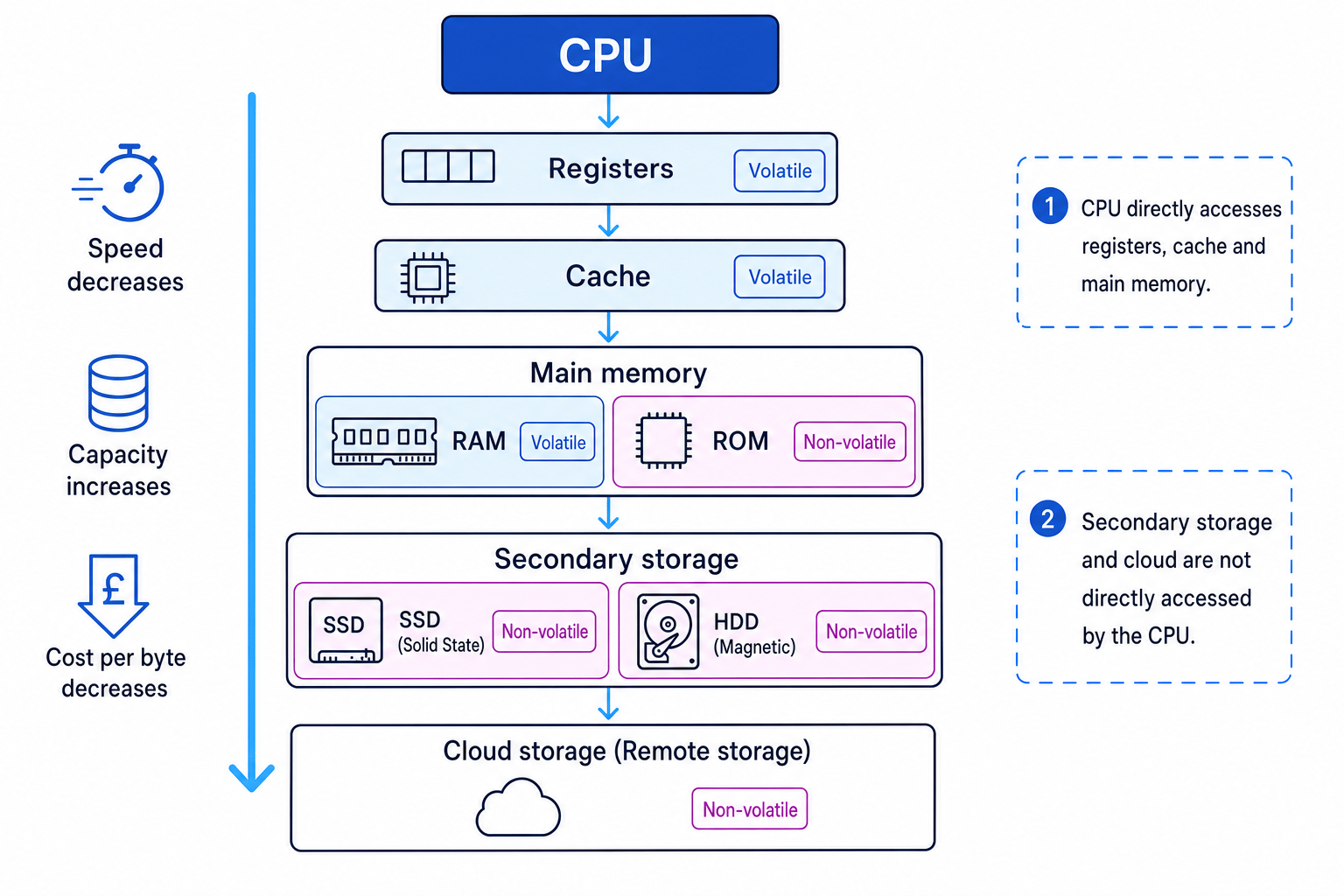
Volatile and non-volatile memory
Definition
Volatile memory
Volatile memory loses its contents when the power is turned off.
Definition
Non-volatile memory
Non-volatile memory keeps its contents when the power is turned off.
RAM
Random access memory (RAM) is volatile main memory.
RAM stores the programs and data currently in use. When you open an application, the program is loaded into RAM so the CPU can access it quickly.
ROM
Read-only memory (ROM) is non-volatile main memory.
ROM stores important instructions needed to start up the computer, such as firmware or boot instructions. Its contents are not normally changed during everyday use.
Cache
Cache is volatile memory used to store frequently used instructions and data. It is faster than RAM but smaller and more expensive per byte.
Registers
Registers are also volatile. They are the fastest and smallest memory locations, used directly by the CPU while instructions are being processed.
Key Idea
Why there are different memory types
Fast memory is usually small and expensive. Large storage is usually slower. Computer systems combine different types so they can be both fast and able to store lots of data.
Main memory vs secondary storage
Main memory is directly accessible by the CPU. In this topic, that means RAM and ROM.
Secondary storage is non-volatile storage that is not directly accessible by the CPU. Examples include solid state drives and magnetic hard disk drives.
The CPU cannot run a program directly from secondary storage. The program must be loaded into main memory first.
Why secondary storage is required
RAM is volatile, so it loses data when the power is off. Secondary storage is needed to store the operating system, applications and user files long term.
Secondary storage usually has much larger capacity than main memory.
Solid state and magnetic storage
Solid state storage
Solid state storage uses electrical circuits to store data persistently. A common example is an SSD.
Advantages of SSDs include:
- Fast read and write speeds.
- No moving parts, so they are more durable.
- Quiet operation.
- Lower power use than many magnetic drives.
Disadvantages include:
- Usually more expensive per GB than magnetic storage.
- Very large-capacity SSDs can be costly.
Magnetic storage
Magnetic storage stores data using magnetised areas on a disk or tape. A common example is a hard disk drive, often called an HDD.
Advantages of HDDs include:
- Large capacities are available.
- Low cost per GB.
- Useful for backups and mass storage.
Disadvantages include:
- Slower than SSDs.
- Moving parts can wear out or be damaged by knocks.
- Can be noisier and use more power.
Example
Choosing storage for a task
A school needs storage for student laptops and also needs somewhere to keep large video backups.
- For the student laptops, SSDs are a sensible choice because they make the laptops start quickly and are less likely to be damaged when moved around.
- For large video backups, magnetic HDDs may be more suitable because they provide high capacity at a lower cost per GB.
- If the school wants off-site backup access, cloud storage could also help, but it would depend on internet speed, cost and data security requirements.
Cloud storage
Cloud storage means storing data on remote servers accessed over a network, usually the internet.
The remote servers still use physical storage, such as magnetic and/or solid state storage. “Cloud” does not mean the data is floating in the air — it is stored in data centres owned or managed by a provider.
Advantages of cloud storage compared with local storage
- You can access files from different devices and locations.
- Files can be shared and synchronised easily.
- It can provide off-site backup if your local device is lost or damaged.
- Capacity can often be increased without buying new hardware yourself.
Disadvantages of cloud storage compared with local storage
- You need an internet connection to access or synchronise files.
- Uploading and downloading may be slower than using local storage.
- There may be ongoing subscription costs.
- You rely on the provider’s security, availability and privacy policies.
Common Mistake
Cloud storage still needs hardware
Cloud storage uses real storage devices in remote data centres. For GCSE, remember that these devices may be magnetic and/or solid state.
Embedded systems
Definition
Embedded system
An embedded system is a computer system built into a larger device to perform a specific task.
Embedded systems are often designed to do one job reliably. They may have limited memory, storage and processing power because they only need to control a particular device.
Examples include:
- A washing machine control system.
- A microwave oven controller.
- A car braking system.
- A printer.
- Traffic light control equipment.
A non-embedded system is a general-purpose computer system. It can run many different types of software and be used for many tasks.
Examples include:
- A desktop PC.
- A laptop.
- A tablet used for general apps.
- A games console.
Common Mistake
Small does not automatically mean embedded
A device is embedded because it is built into a larger system for a specific purpose, not just because it is small.
Exam technique
In the exam
- For CPU questions, link each component to its role: ALU calculates, control unit coordinates, clock synchronises, registers temporarily store, buses transfer data and signals.
- For performance questions, explain the effect of clock speed, cores and cache size, but mention that the benefit depends on the task or software when relevant.
- For storage questions, compare using clear factors: volatility, speed, capacity, cost, durability, portability, internet dependence and security.
Self review
Check yourself
- Can you explain the Fetch–Decode–Execute cycle without naming specific registers?
- Why does a computer need secondary storage if it already has RAM?
- How is an embedded system different from a general-purpose computer?

Recap questions
Test yourself with 5 quick questions on this guide. Answer them all correctly to complete it.
You've reached the end
Test yourself on this topic, or move on to the next guide.
How was this guide?