Revision notes for OCR GCSE Computer Science The Integrated Development Environment (IDE). Open the guide for explanations and worked examples. Written against the OCR GCSE Computer Science (J277) specification, so the content matches what's examinable rather than general Computer Science background.
The Integrated Development Environment (IDE)
What you'll learn
- What an Integrated Development Environment (IDE) is.
- How IDE tools help programmers write, run, test and fix programs.
- The role of editors, error diagnostics, run-time environments and translators.
- How to describe IDE features clearly in OCR J277 exam answers.
What is an IDE?
An Integrated Development Environment, usually shortened to IDE, is software that brings together several programming tools in one place. Instead of using separate programs to type code, translate it, run it and find errors, an IDE gives you a combined workspace.
Common examples include IDLE, Thonny, Visual Studio Code, PyCharm and online IDEs such as Replit. The exact layout varies, but the main facilities are usually similar.
Definition
Integrated Development Environment (IDE)
An IDE is software that provides tools to help programmers develop programs, usually including an editor, error diagnostics, a run-time environment and a translator.
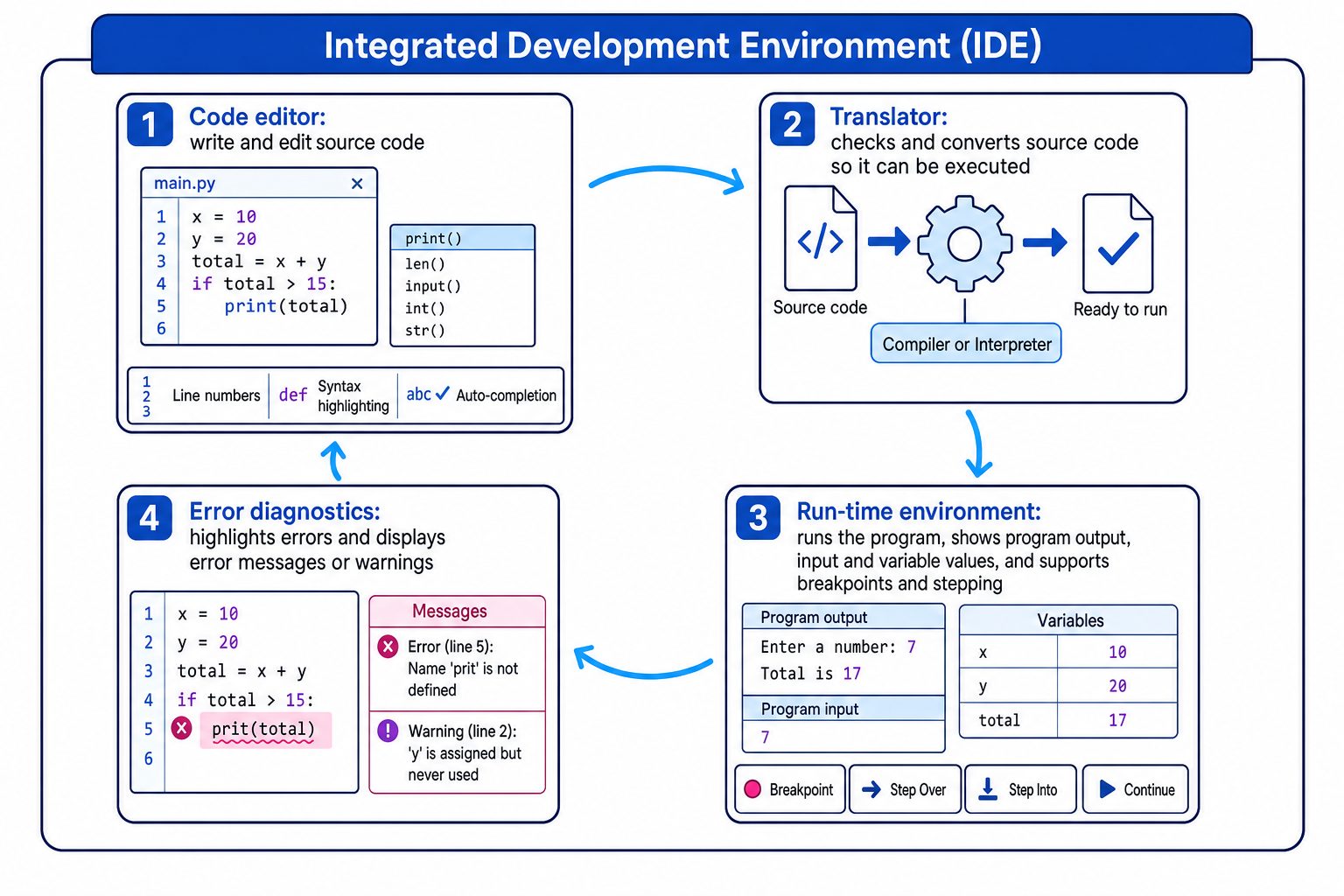
The development cycle often looks like this: you write code, translate or check it, run it, diagnose errors, then edit the code again.
Key Idea
The big picture
An IDE does not write the program for you. It gives the programmer tools that make writing, testing and debugging code faster and easier.
Source code and development tools
Before looking at the IDE tools, you need two key terms.
Definition
Source code
Source code is the program code written by a programmer in a high-level programming language such as Python.
A tool or facility in an IDE is a built-in feature that supports part of program development. For OCR J277, the four named facilities you need are:
| IDE facility | Main purpose |
|---|---|
| Editor | Write and edit source code |
| Error diagnostics | Identify and explain errors |
| Run-time environment | Run and test the program |
| Translator | Convert or execute source code so the computer can run it |
Editors
An editor is the part of the IDE where you write and change your source code. It is more helpful than a basic text editor because it understands programming language features.
Definition
Editor
An editor is an IDE tool used to enter, edit and organise source code.
An editor may include:
- Line numbers: help you find the exact line mentioned in an error message.
- Syntax highlighting: displays different parts of code differently, such as keywords, strings and comments, so mistakes are easier to spot.
- Auto-indentation: lines up blocks of code automatically, which is especially useful in Python.
- Auto-completion: suggests keywords, variable names or function names as you type.
- Bracket matching: helps you see whether brackets or quotation marks have been closed.
- Search and replace: helps you find or change repeated names or values.
Definition
Syntax
Syntax means the grammar rules of a programming language, such as where brackets, colons, keywords or indentation must be used.
How the editor helps a programmer
The editor reduces small typing mistakes and helps the programmer understand the structure of the program. For example, if a keyword is not highlighted as expected, it may have been spelt incorrectly.
Tip
Use line numbers
When an error message says something like line 12, use the editor’s line numbers to jump straight to the likely problem area.
Error diagnostics
Error diagnostics are IDE features that help identify and explain problems in the program. They often appear as messages, warnings, underlining, highlighted lines or a separate “Problems” panel.
Definition
Error diagnostics
Error diagnostics are IDE tools that detect, highlight and report errors or potential errors in a program.
There are different types of error you may see while developing a program.
A syntax error breaks the rules of the programming language. For example, in Python, writing if score >= 50 without a colon at the end would cause a syntax error.
A run-time error occurs while the program is running. For example, a program might try to divide by zero.
A logic error means the program runs, but produces the wrong result. For example, using subtraction instead of addition may not crash the program, but the answer will be incorrect.
How error diagnostics help a programmer
Error diagnostics can:
- Show where an error has been found.
- Give a message explaining what may be wrong.
- Warn about suspicious code, such as a variable that is created but never used.
- Help the programmer fix mistakes more quickly than searching manually.
Example
Diagnosing a syntax error
A Python IDE shows the message: SyntaxError: expected ':' on line 1. The code is if score >= 50 followed by an indented print("Pass").
- Compare the message with the line of code. The line starts an
ifstatement, so in Python it must end with a colon. - Use the editor to change the line to
if score >= 50:and keep theprint("Pass")line indented underneath it. - Run the program again. If the syntax error has gone, test values such as 50 and 49 to check the program behaves correctly.
Common Mistake
Assuming the highlighted line is always the cause
An IDE often highlights where it noticed the error, not always where the error began. A missing bracket, quote mark or colon may be on the line before the highlighted line.
Run-time environment
The run-time environment is the part of the IDE that lets you execute the program and observe what happens while it runs.
Definition
Run-time environment
A run-time environment is an IDE facility that allows a program to run and be tested, often showing input, output and variable values.
In many IDEs, the run-time environment includes a console or shell, where the program can display output and ask for input.
It may also include debugging tools. Debugging means finding and fixing errors in a program.
Useful debugging features include:
- Breakpoints: chosen lines where the program pauses.
- Stepping: running the program one line at a time.
- Variable display or watch window: shows the current values stored in variables.
Definition
Breakpoint
A breakpoint is a marker placed on a line of code so the program pauses when it reaches that line.
How the run-time environment helps a programmer
The run-time environment lets you test whether the program actually works. This is especially important for logic errors, because the translator may not detect them.
Example
Finding a logic error using variable values
A program asks for two numbers and should add them. With inputs 8 and 5, it outputs 3 instead of 13.
- Set a breakpoint just after the line that calculates the total, then run the program with the test inputs 8 and 5.
- Inspect the variable values. If
num1is 8 andnum2is 5, the inputs have been stored correctly, buttotalbeing 3 shows the calculation is wrong. - Check the calculation line. If it says
total = num1 - num2, change the operator to+, then run the test again.
Key Idea
Testing is not just pressing Run
Good testing means choosing inputs, checking the output against what you expected, and using IDE tools to investigate when the result is wrong.
Translators
A computer cannot directly execute high-level source code in the way humans write it. A translator is needed.
Definition
Translator
A translator is software that converts high-level source code into a form that can be executed by the computer, or executes it by translating instructions as needed.
At GCSE, you should know that IDEs often include or connect to a translator. Two common types are:
- A compiler, which translates the whole program before it is run.
- An interpreter, which translates and runs code statement by statement.
In a Python IDE such as IDLE or Thonny, pressing Run usually sends the program to the Python interpreter. In a compiled language IDE, there may be a Build or Compile button before running.
How translators help a programmer
A translator helps by:
- Checking whether the source code follows the language rules.
- Reporting syntax errors before or during execution.
- Producing or running a version of the program that the computer can execute.
- Allowing the programmer to test the program from inside the IDE.
Common Mistake
Mixing up the editor and translator
The editor is where you type and change the source code. The translator checks, converts or runs the code so the computer can execute it.
How the IDE tools work together
The four IDE facilities are most powerful when used together.
A typical workflow is:
- Use the editor to write or change source code.
- Use the translator by running, building or compiling the program.
- Use the run-time environment to enter test data and observe output.
- Use error diagnostics to understand errors and warnings.
- Return to the editor to fix the program.
This cycle repeats many times while a program is being developed.
Example
Choosing the right IDE tool
A program runs, but the final total is wrong. There is no syntax error message.
- Since the program runs, the issue is unlikely to be a syntax error caught by the translator.
- Because the output is incorrect, suspect a logic error in the algorithm or calculation.
- Use the run-time environment: set breakpoints, step through the code, and inspect variable values to find where the result first becomes wrong.
Practical experience with an IDE
For OCR J277, you should have practical experience using a range of these tools within at least one IDE. That means you should be comfortable doing things such as:
- Creating, opening and saving a program file.
- Writing code in the editor.
- Using syntax highlighting, line numbers and indentation.
- Running the program inside the IDE.
- Reading error messages and fixing syntax errors.
- Testing the program using different inputs.
- Using debugging tools such as breakpoints or stepping, if your IDE provides them.
Tip
A good practice routine
When learning a new IDE, deliberately create a small error, such as a missing colon or misspelt variable name. Run the program, read the diagnostic message, then fix it. This helps you learn how that IDE reports problems.
What exam questions often want
OCR questions about IDEs usually ask you to name a tool and explain how it helps a programmer. A strong answer links the feature to a clear benefit.
For example:
| Weak answer | Better answer |
|---|---|
| “It has an editor.” | “The editor lets the programmer write and edit source code, using features such as line numbers and syntax highlighting to make code easier to read and fix.” |
| “It finds errors.” | “Error diagnostics highlight errors and display messages, helping the programmer identify where a syntax or run-time error may be.” |
| “It runs the program.” | “The run-time environment allows the programmer to execute the program, test inputs and outputs, and inspect variable values during debugging.” |
Exam technique
In the exam
- Name the IDE facility first: editor, error diagnostics, run-time environment or translator.
- Explain what it does, not just that it exists.
- Link the tool to how it helps development, such as writing code faster, finding errors, running tests or translating source code.
Self review
Check yourself
- What is the difference between an editor and a translator?
- Which IDE tools would help you investigate a program that runs but gives the wrong output?
- Can you give one way each of the four IDE facilities helps a programmer?

Recap questions
Test yourself with 5 quick questions on this guide. Answer them all correctly to complete it.
You've reached the end
Test yourself on this topic, or move on to the next guide.
How was this guide?