Revision notes for Edexcel GCSE Computer Science Representing bitmap images in binary. Open the guide for explanations and worked examples. Written against the Edexcel GCSE Computer Science (1CP2) specification, so the content matches what's examinable rather than general Computer Science background.
Representing bitmap images in binary
What you'll learn
- What a bitmap image is and how it is built from pixels.
- How resolution affects the amount of image data.
- How colour depth controls the number of colours available.
- How to estimate bitmap image data size using bits, bytes and KiB.
Starting point: binary data
Computers store all data using binary, which means using only the digits 0 and 1.
Definition
Bit
A bit is a single binary digit: either 0 or 1. It is the smallest unit of data a computer can store.
A picture cannot be stored as “a picture” directly. It must be broken down into values that can be represented in binary. For bitmap images, the key idea is: split the image into tiny squares, then store a binary value for each square.
Bitmap images and pixels
Definition
Bitmap image
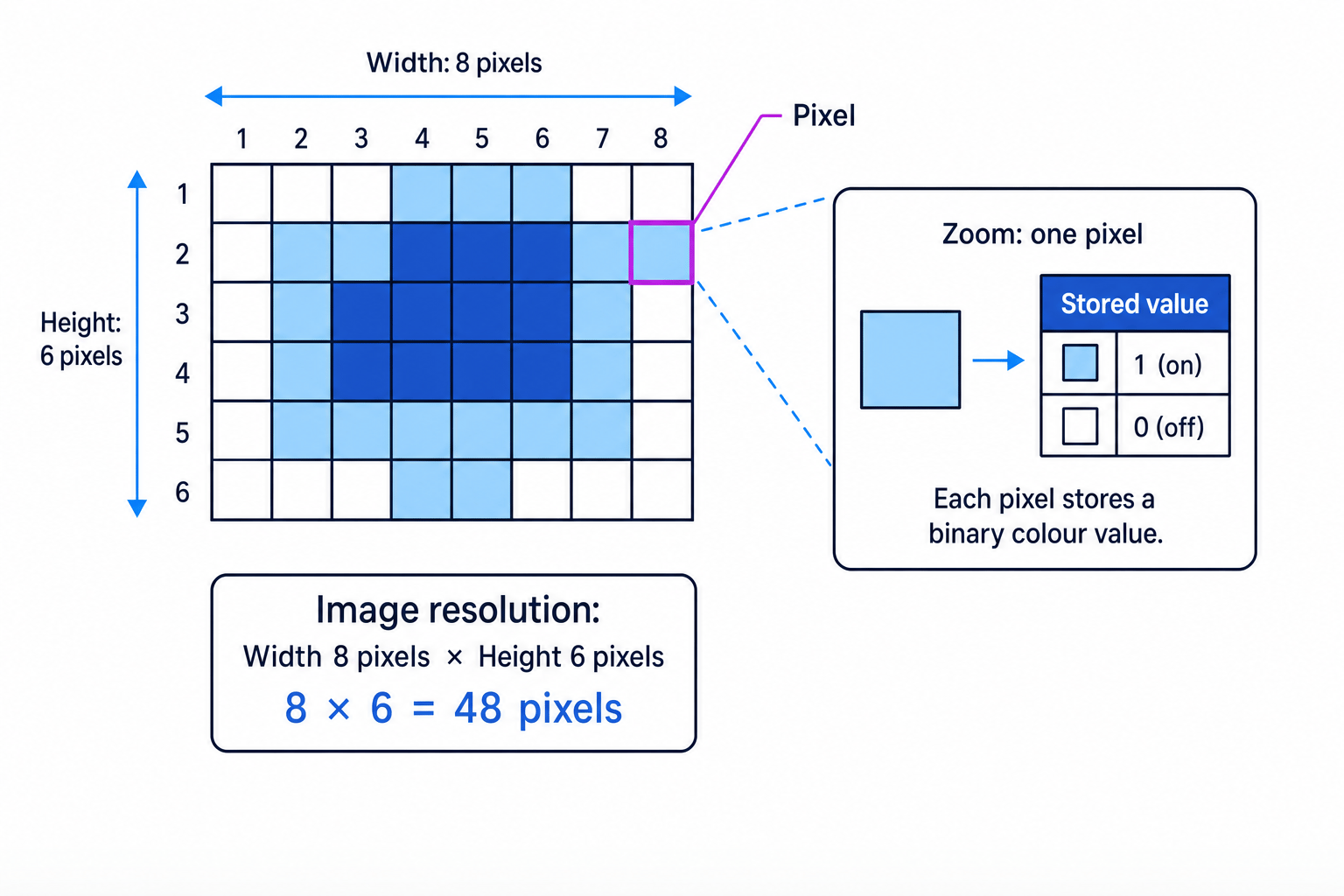
A bitmap image is an image represented as a grid of tiny squares called pixels, where each pixel stores a colour value in binary.
Definition
Pixel
A pixel, short for “picture element”, is the smallest individual square of colour in a bitmap image.
If you zoom in far enough on a bitmap image, you can see the individual pixels. Each pixel has a colour, and that colour is stored using a binary code.
The computer also needs to know the order of the pixels. A simple way to imagine this is that it stores pixel values row by row, from left to right and top to bottom.
Black-and-white pixels
For a very simple black-and-white image, each pixel could be stored using just 1 bit:
- 0 could mean white
- 1 could mean black
The exact meaning of each value depends on the system or file format, but the principle is the same: each pixel’s colour is stored as binary.
Example
Encoding a tiny black-and-white image
Suppose 0 means white and 1 means black. A 3 pixel by 2 pixel image is stored row by row as:
0 1 0 1 1 0
-
Work out the resolution: the image is 3 pixels wide and 2 pixels high, so it has 3×2=63 \times 2 = 63×2=6 pixels.
-
Split the data into rows of 3 pixels:
Row 1 is0 1 0
Row 2 is1 1 0 -
Convert each bit into a pixel colour:
Row 1 is white, black, white.
Row 2 is black, black, white.
Key Idea
Bitmap representation
A bitmap image is stored as binary colour values for each pixel in a grid.
Resolution
Definition
Resolution
Resolution is the number of pixels in an image, usually written as width in pixels by height in pixels.
For example, an image with a resolution of 800 by 600 has 800 pixels across each row and 600 rows of pixels.
To find the total number of pixels:
number of pixels=width×height\text{number of pixels} = \text{width} \times \text{height}number of pixels=width×heightHigher resolution usually means the image can show more detail, because it has more pixels. However, it also means more pixel values must be stored.
Example
Finding the number of pixels
An image has a resolution of 1280 by 720. Find the total number of pixels.
-
Identify the width and height: width is 1280 pixels and height is 720 pixels.
-
Multiply width by height: 1280×720=921 6001280 \times 720 = 921\,6001280×720=921600.
-
State the result with units: the image contains 921,600 pixels.
Common Mistake
Resolution is not the physical screen size
Resolution is measured in pixels, not centimetres or inches. A larger screen and a smaller screen could both display the same resolution.
Colour depth
Definition
Colour depth
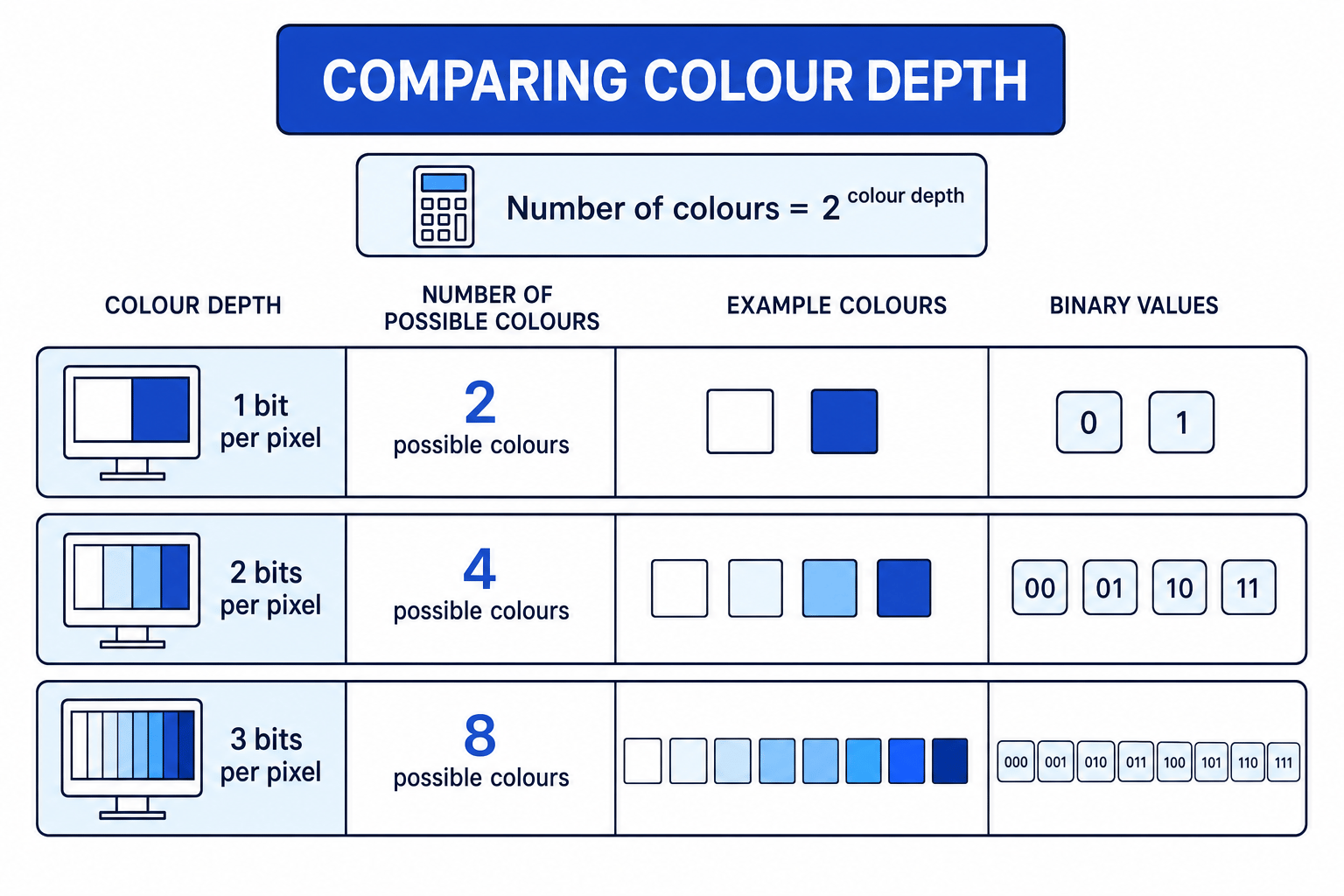
Colour depth is the number of bits used to store the colour of each pixel. It is often measured in bits per pixel, sometimes shortened to bpp.
The more bits used per pixel, the more possible binary combinations there are. This means the image can use more possible colours.
The number of possible colours is:
number of colours=2colour depth\text{number of colours} = 2^{\text{colour depth}}number of colours=2colour depthSo:
- 1 bit per pixel gives 2 possible colours.
- 2 bits per pixel gives 4 possible colours.
- 3 bits per pixel gives 8 possible colours.
- 8 bits per pixel gives 256 possible colours.
Why powers of 2?
Each bit has 2 possible states: 0 or 1. Adding another bit doubles the number of possible patterns.
For example, with 2 bits you can store:
00011011
That gives 4 possible values, so 4 possible colours.
Example
Working out possible colours
How many colours can be represented using a colour depth of 5 bits per pixel?
-
Use the colour depth formula: number of colours=2colour depth\text{number of colours} = 2^{\text{colour depth}}number of colours=2colour depth.
-
Substitute the colour depth: 25=322^5 = 3225=32.
-
Interpret the result: 5 bits per pixel can represent 32 possible colours.
Example
Choosing a suitable colour depth
A bitmap image needs at least 100 possible colours. What is the smallest colour depth that can be used?
-
Compare powers of 2 near 100: 26=642^6 = 6426=64, which is too few colours.
-
Try the next colour depth: 27=1282^7 = 12827=128, which is enough colours.
-
Choose the smallest value that works: the image needs 7 bits per pixel.
Tip
Colour depth shortcut
Increasing colour depth by 1 bit doubles the number of possible colours.
Resolution and colour depth together
Resolution and colour depth affect different parts of the bitmap:
- Resolution decides how many pixels there are.
- Colour depth decides how many bits are stored for each pixel.
To estimate the image data size:
number of pixels=width×heightimage data size in bits=number of pixels×colour depth\begin{aligned} \text{number of pixels} &= \text{width} \times \text{height} \\ \text{image data size in bits} &= \text{number of pixels} \times \text{colour depth} \end{aligned}number of pixelsimage data size in bits=width×height=number of pixels×colour depthThis gives the size of the pixel data, not always the exact final file size.
Units for image size
You need to be comfortable with the storage units used in GCSE Computer Science:
- 1 nibble = 4 bits
- 1 byte = 8 bits
- 1 KiB = 1024 bytes
- 1 MiB = 1024 KiB
To convert bits into bytes, divide by 8.
To convert bytes into KiB, divide by 1024.
Example
Calculating bitmap image data size
A bitmap image is 640 pixels wide and 480 pixels high. It uses a colour depth of 8 bits per pixel. Calculate the image data size in KiB.
-
Find the total number of pixels: 640×480=307 200640 \times 480 = 307\,200640×480=307200 pixels.
-
Multiply by the colour depth to find the number of bits: 307 200×8=2 457 600307\,200 \times 8 = 2\,457\,600307200×8=2457600 bits.
-
Convert bits into bytes: 2 457 600÷8=307 2002\,457\,600 \div 8 = 307\,2002457600÷8=307200 bytes.
-
Convert bytes into KiB: 307 200÷1024=300307\,200 \div 1024 = 300307200÷1024=300 KiB.
Common Mistake
Mixing up bits and bytes
Colour depth is usually given in bits per pixel, but file size is often asked for in bytes or KiB. Always convert bits to bytes by dividing by 8.
Image quality and file size trade-off
Increasing resolution usually improves detail because there are more pixels. Increasing colour depth usually improves colour accuracy because more colours are available.
However, both changes increase the amount of data stored.
Key Idea
The trade-off
Higher resolution and higher colour depth can improve image quality, but they also increase the image data size.
For example:
- Doubling the width doubles the number of pixels.
- Doubling the height doubles the number of pixels.
- Increasing colour depth stores more bits for every pixel.
So a high-resolution image with a high colour depth can become very large.
Common Mistake
Real files may include extra data
Actual bitmap files can also store metadata, which is data about the image, such as width, height and colour depth. In GCSE calculations, unless the question gives extra metadata, calculate only the pixel data size.
How the computer reconstructs the image
When the image is loaded, the computer needs enough information to rebuild the grid:
- The resolution tells it how wide and tall the pixel grid is.
- The colour depth tells it how many bits to read for each pixel.
- The binary colour values tell it what colour each pixel should be.
If any of this information is missing or interpreted incorrectly, the image may display wrongly.
Example
Interpreting stored pixel data
A simple image has a resolution of 4 by 2 and uses 1 bit per pixel. The pixel data is:
1 0 0 1 0 1 1 0
-
Use the resolution to find the row length: the image is 4 pixels wide, so each row contains 4 bits.
-
Split the data into rows:
Row 1 is1 0 0 1
Row 2 is0 1 1 0 -
Apply the colour rule: if 1 means black and 0 means white, the image has black pixels at the first and fourth positions of row 1, and the second and third positions of row 2.
Exam technique
In the exam
-
If you see resolution, multiply width by height to find the number of pixels.
-
If you see colour depth, multiply total pixels by bits per pixel to find the size in bits.
-
Check the requested unit carefully: divide by 8 for bytes, then by 1024 for KiB.
Self review
Check yourself
- What is the difference between resolution and colour depth?
- How many possible colours can be represented with 4 bits per pixel?
- Why does increasing resolution increase the amount of data needed to store a bitmap image?
You've reached the end
Test yourself on this topic, or move on to the next guide.
How was this guide?